Conversations under a hat
Start a conversation with an assistant installed on your computer, send messages, and see what each conversation is doing.
On this page
Each hat keeps its own conversations. A conversation is a back-and-forth with one assistant: Claude Code, Codex or OpenCode. The assistant runs on your computer, under your own account with it. Your AI account explains what that means, and Assistants shows which ones the app found.
The conversations under a hat
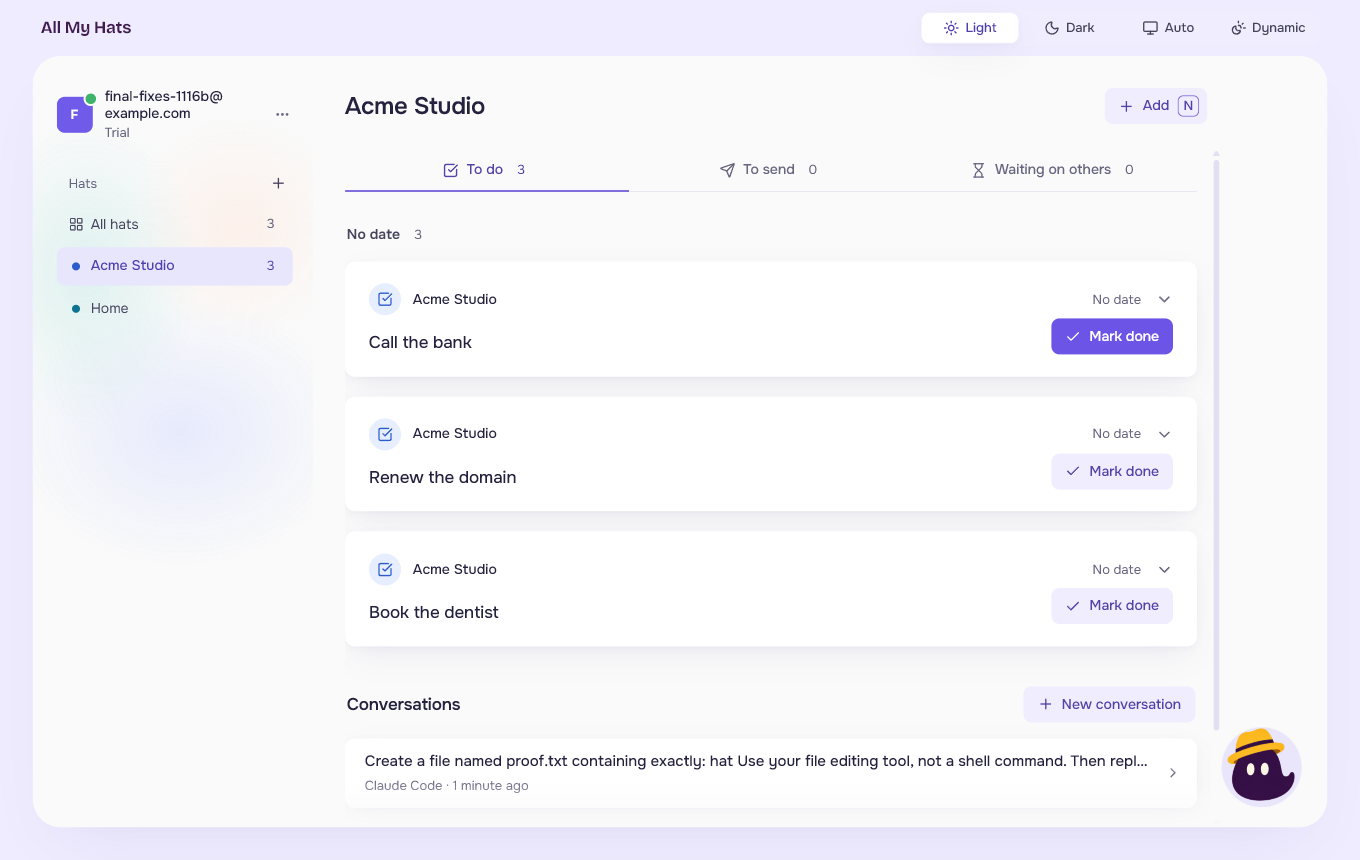
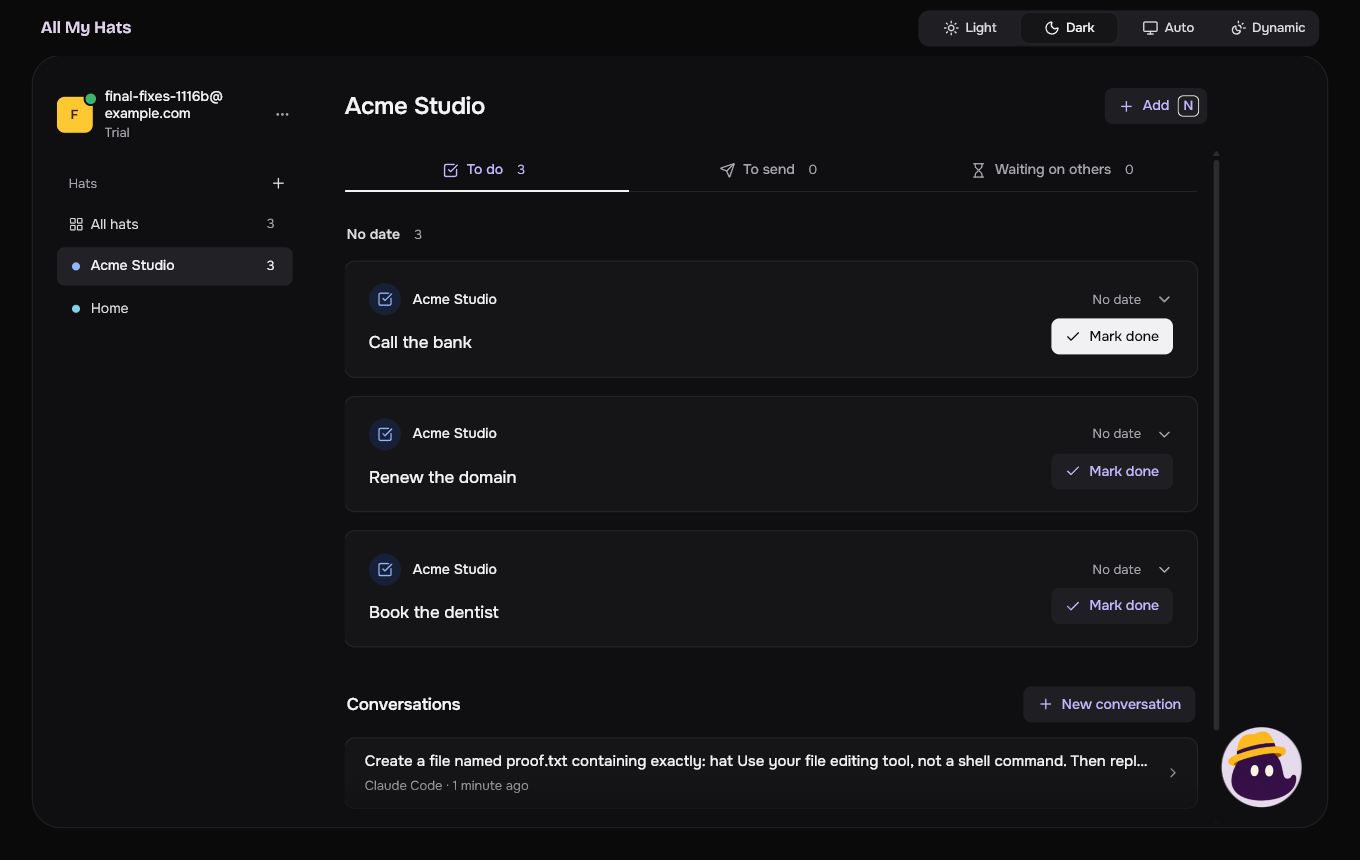
Click a hat. The middle shows Needs you first, when a conversation of the hat waits on you, then the hat's queue, then Conversations, newest first, with the rest. A conversation never shows twice: while it needs you it sits under Needs you, and it moves down to Conversations once you have answered. All hats shows only Needs you, with the waiting conversations of every hat: wear a hat to see its other conversations. Each row has the conversation's title, which is the start of your first message, the assistant's name and when something last happened, such as "just now".
 Enlarge
 Enlarge
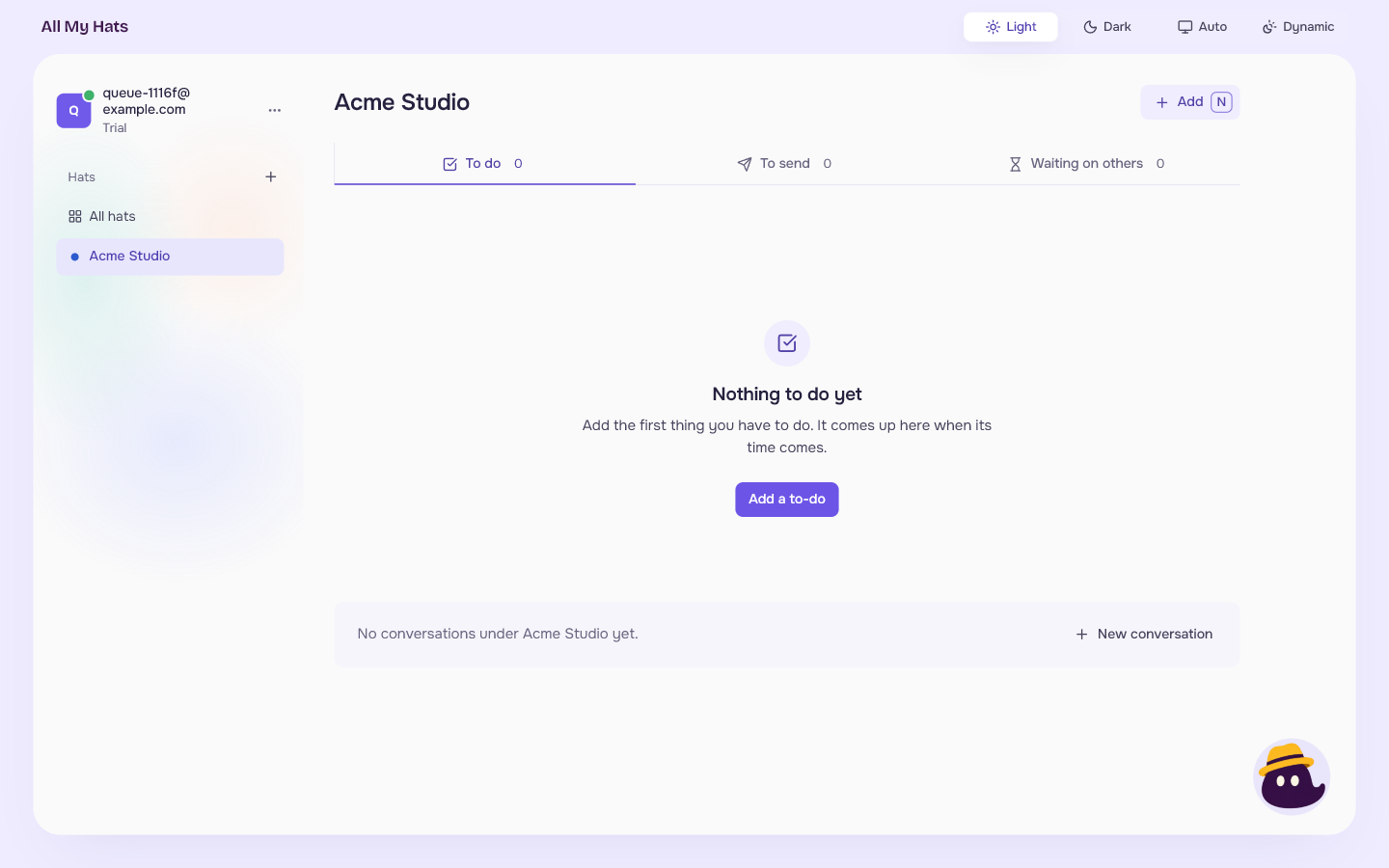
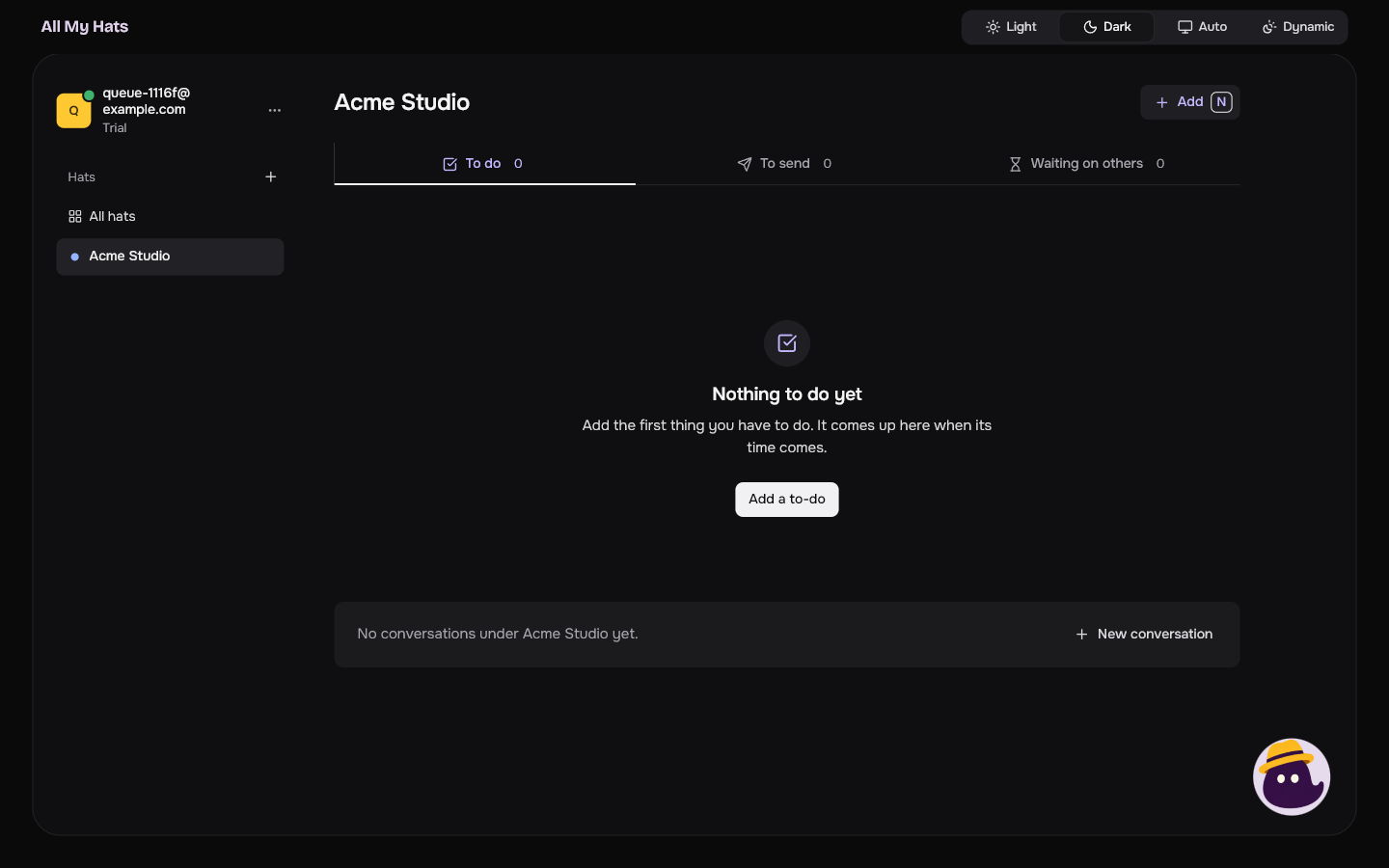
A hat with no conversations says "No conversations under" followed by its name and "yet", with a New conversation button. A hat whose only conversations are the ones under Needs you says "No other conversations under" followed by its name.
 Enlarge
 Enlarge
Conversations are kept on your computer, so you can pick one up after closing the app.
A row can carry a mark:
| Mark | What it means |
|---|---|
| Running | An answer is on its way. |
| Needs you | The assistant asked for permission and waits for your answer. |
| Stopped on a problem | The conversation stopped because something failed. |
The same hat in the list on the left carries a mark too, so you can see from any screen, and from another hat, that a conversation needs you. See A tour of the main screen.
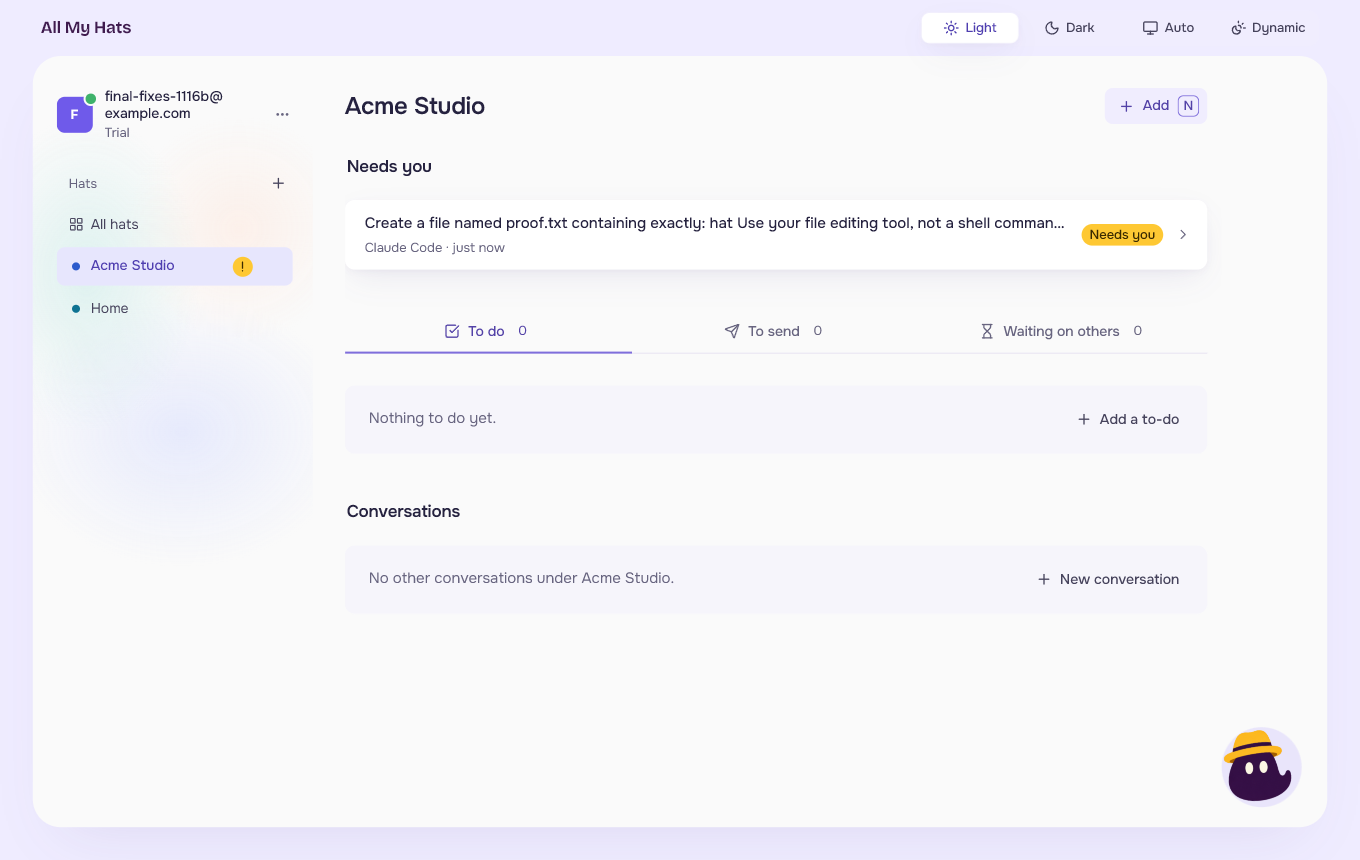 Enlarge
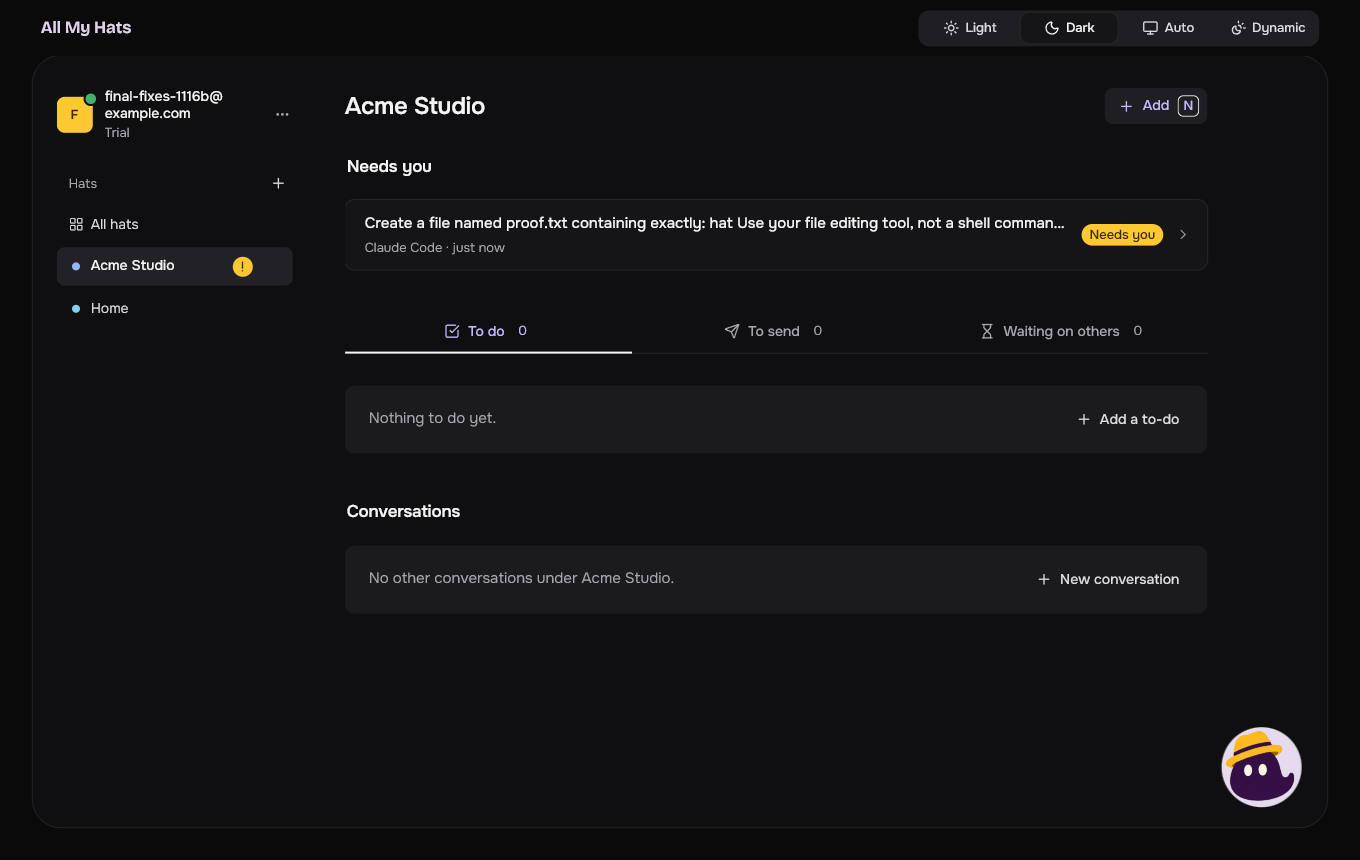 Enlarge
Needs you
A conversation that needs you comes first. The row under Needs you carries the mark Needs you. On All hats, the row also names its hat. Click it and the app puts that hat on and opens the conversation on the request, so you can answer it. Permission requests shows what you will find there.
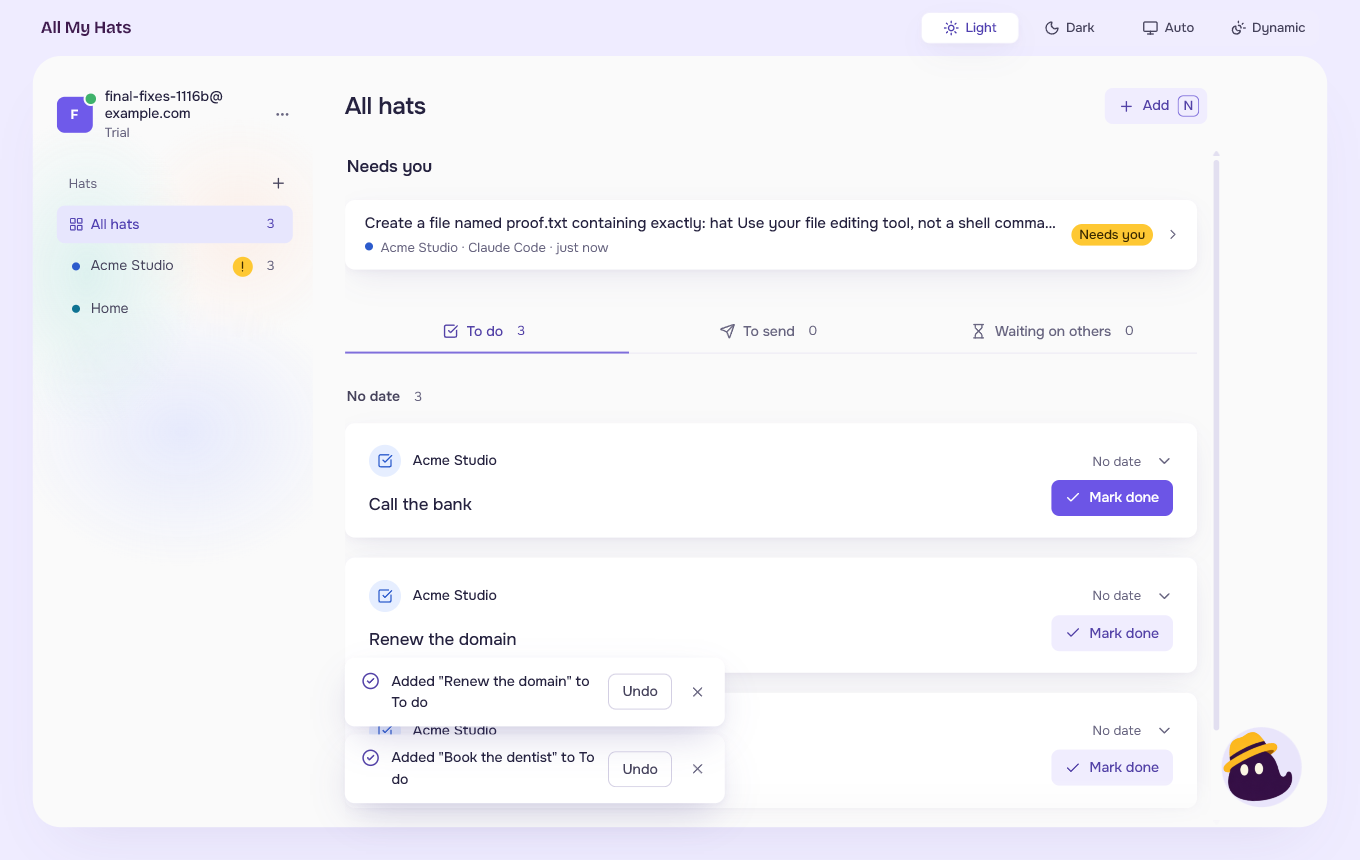 Enlarge
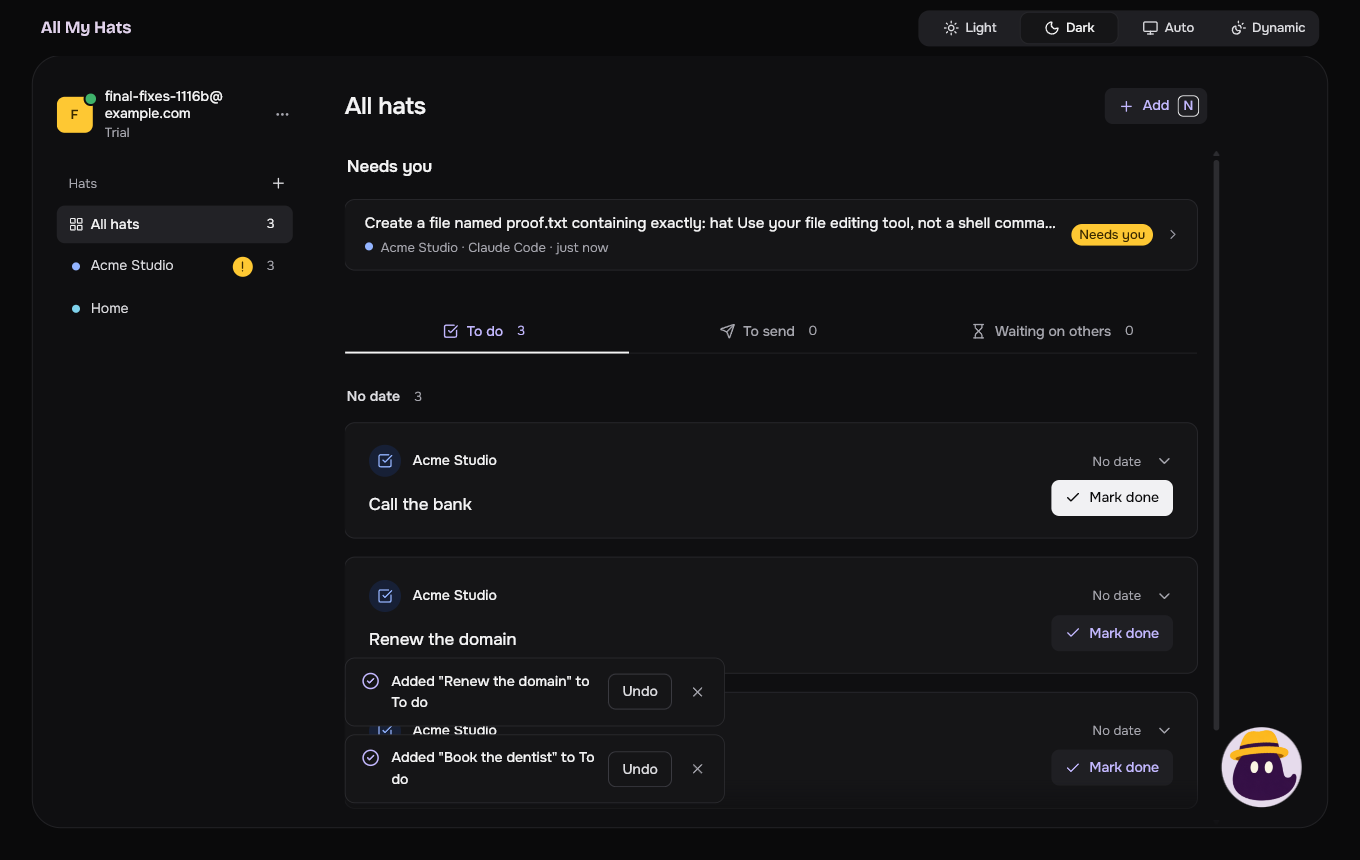 Enlarge
Start a conversation
- Open the hat and press New conversation.
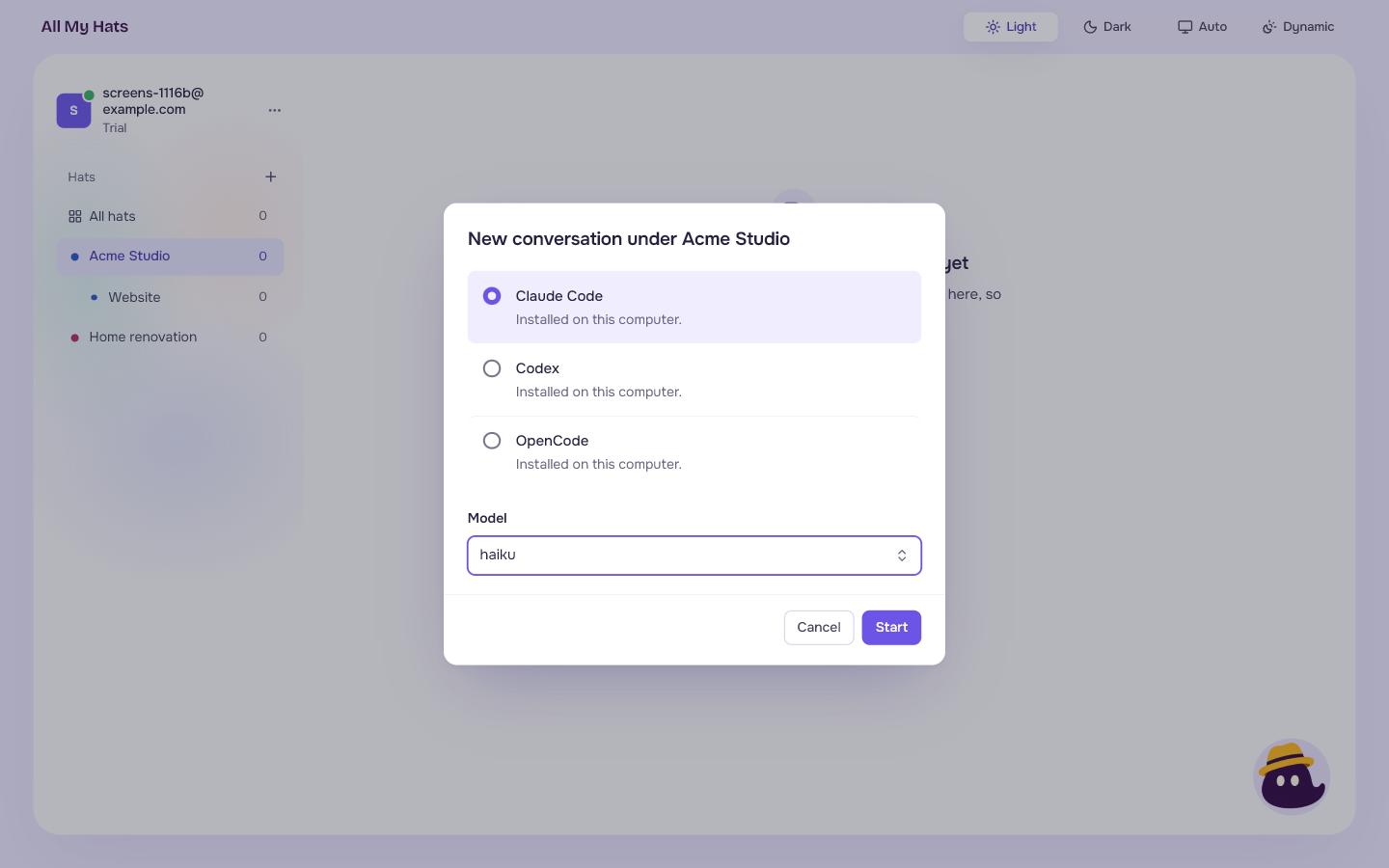
- If more than one assistant is installed, a dialog asks which one. It lists only the assistants found on your computer, and says "Installed on this computer." under each. The one marked In use on the Assistants screen comes first.
- Under Model, leave Let followed by the assistant's name choose if you have no preference, or pick one from the list. The list is there only for an assistant that reports its models.
- Press Start.
 Enlarge
If only one assistant is installed, there is nothing to ask and the conversation opens right away. If none is installed, the app tells you, with Check again and Open Assistants. See When an assistant is not found, cannot start or is signed out.
If you go back without sending a message, the conversation is not kept.
Send a message
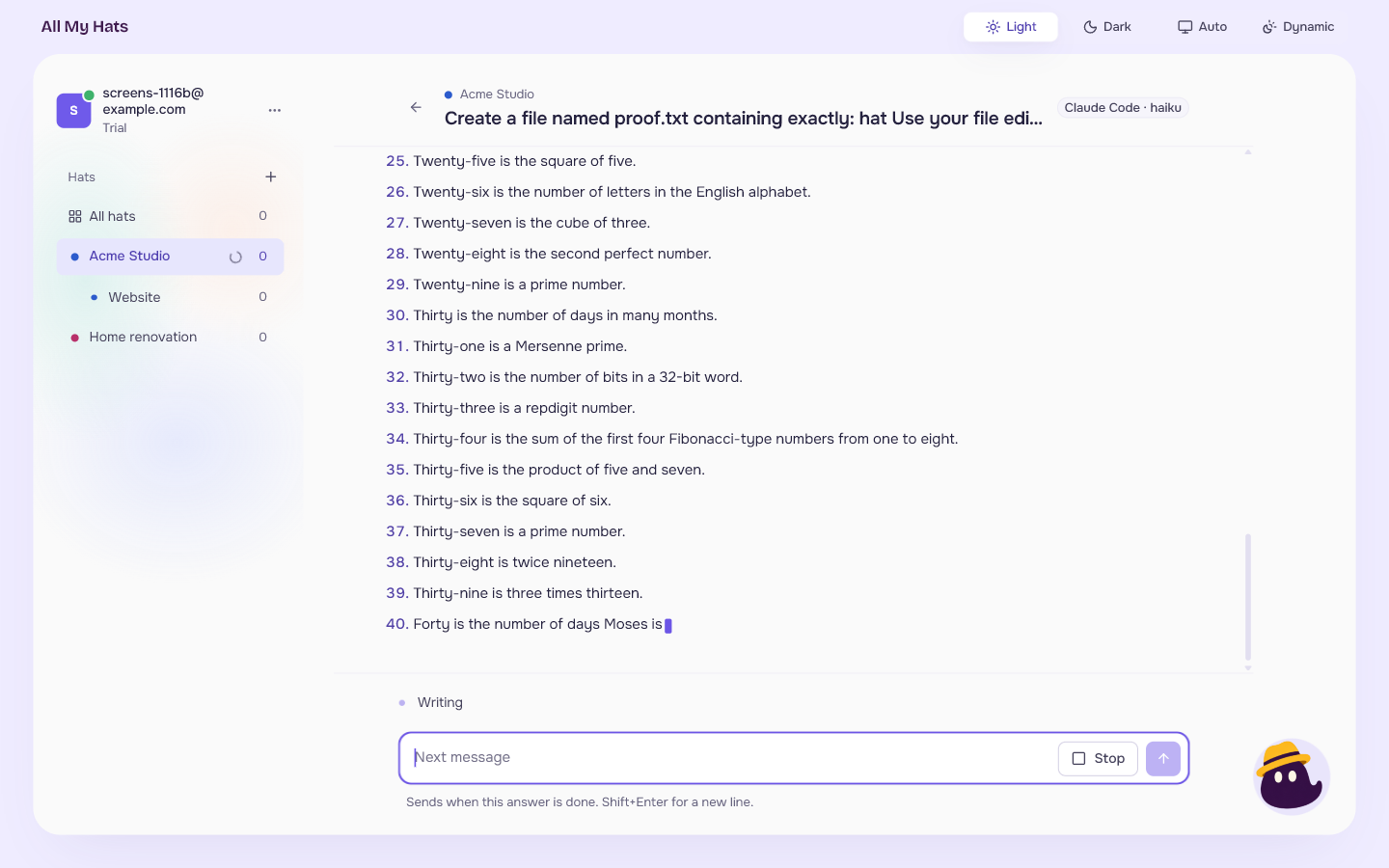
Type in the field Write a message. Press Enter to send, or Shift and Enter to start a new line. Your message appears on the right. The answer arrives as it is written, under the line that says what is happening.
 Enlarge
The line above the field says what the assistant is doing:
| The line says | It means |
|---|---|
| Starting followed by the assistant's name | The assistant is opening. |
| Thinking | The assistant is working out a reply. |
| Writing | The answer is arriving. |
| Reading a file, Changing a file, Running a command, Searching, Fetching a page | The assistant is using a tool. |
| Waiting for your answer about followed by what it wants to do | A permission request is waiting. See Permission requests. |
| Summarizing the earlier messages to make room | The conversation got long, and the assistant is shortening it. |
| The request did not go through. Trying again | A short problem. The app tries again and says which try it is on. |
| Ready for your next message | The answer is done. |
When the assistant uses a tool, a line in the conversation says what it did: "Read a file", "Changed a file", "Ran a command", "Searched" or "Fetched a page". When there is more to see, press the line to open it. A line also says when it did not work: "Could not change a file".
If the assistant goes quiet for a while, the line says that it "has gone quiet", with how long, and shows Retry.
Send a message while an answer is arriving
The field stays open while an answer arrives. Its hint changes to "Sends when this answer is done." Type your next message and send it. It waits, and shows "Waiting to be sent" under it with Remove. Press Remove to take it back before it goes. The app sends it when the answer ends.
If the app says "Your waiting messages have not been sent", press Send them now.
Long conversations
When you scroll up to read, the conversation stays where you are and shows Jump to latest. Press it to go back to the newest text.
To end an answer early, or to pick a conversation back up after closing the app, see Stop an answer, or pick a conversation back up.