Your hats
Make a hat, rename it, change its color, put one hat inside another, archive a hat you no longer need, and bring an archived hat back.
On this page
A hat is a context you work in. Hats explains the idea. This page covers what you can do with them.
 Enlarge
 Enlarge
Make a hat
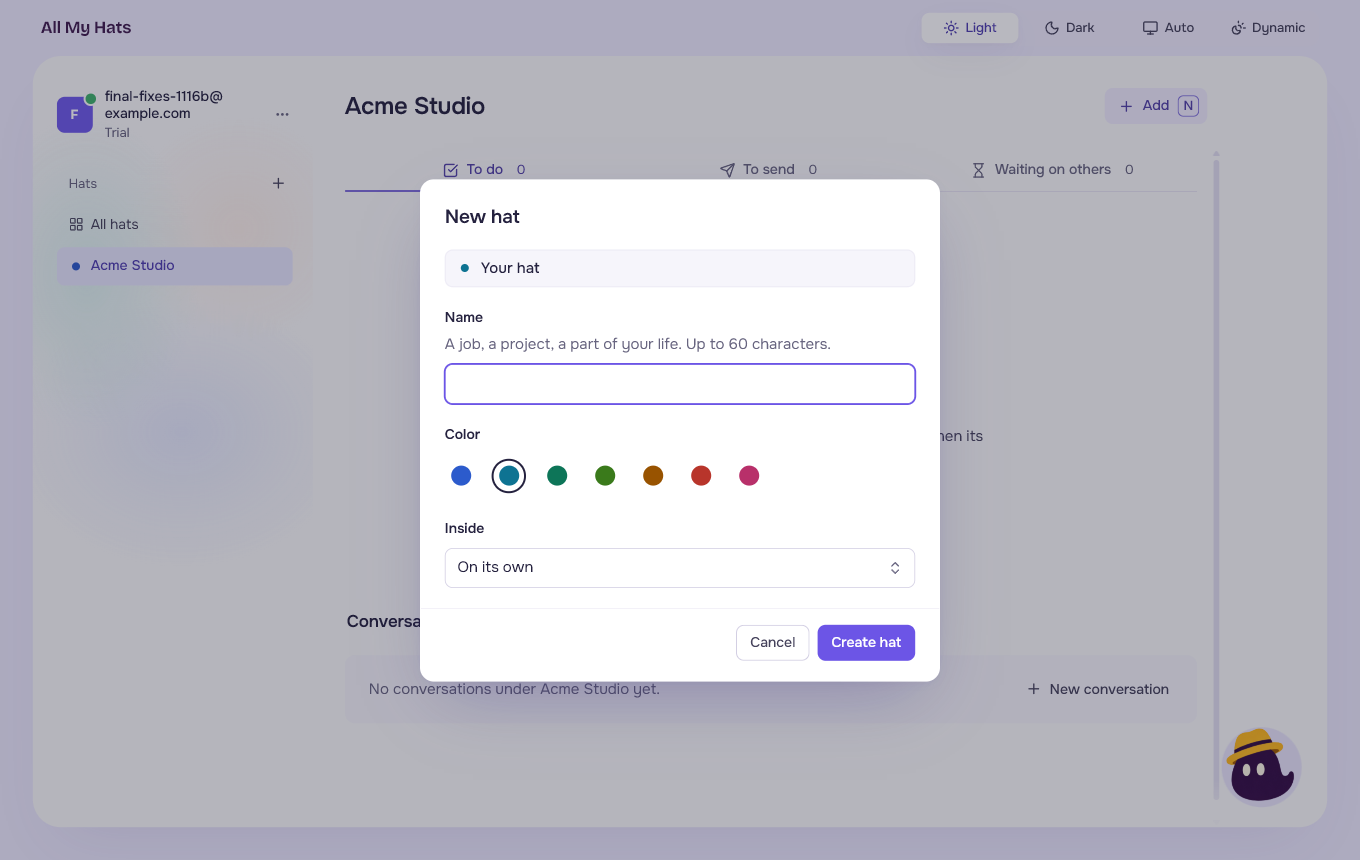
- Press the + beside Hats, or press New hat on a screen that has the button.
- Type a name. It can be up to 60 characters. If you leave it empty, the app says "Give the hat a name."
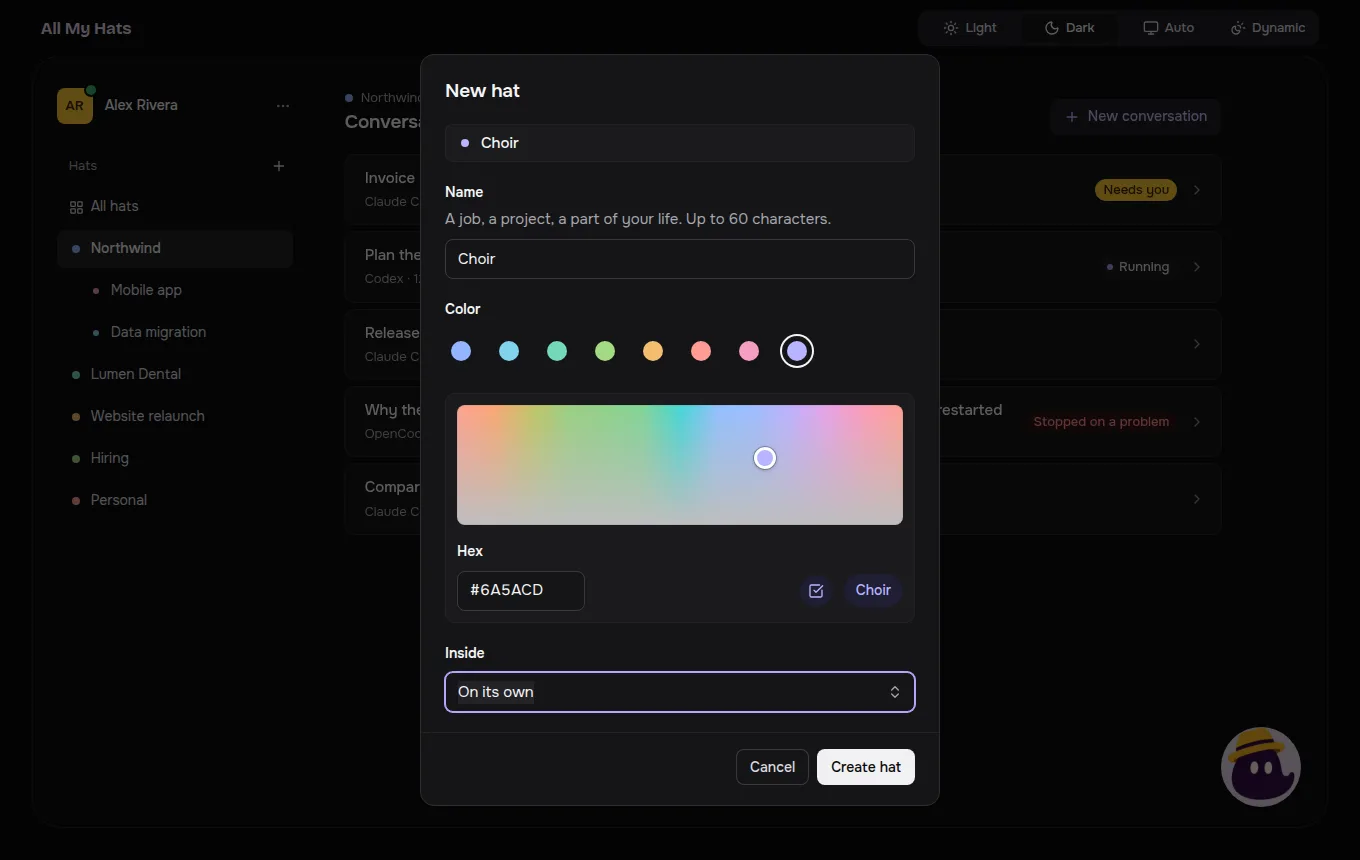
- Pick a color: Blue, Cyan, Teal, Green, Clay, Red or Rose, or Custom for any other color. The dialog starts on a color that none of your hats uses, so a new hat does not look like another one. Pick any color explains Custom.
- If you already have a hat, Inside lets you put the new hat inside one of them. On its own leaves it at the top level.
- Press Create hat.
 Enlarge
If you already have a hat with that name, the app says "You already have a hat called" followed by the name, and still lets you use it.
Pick any color
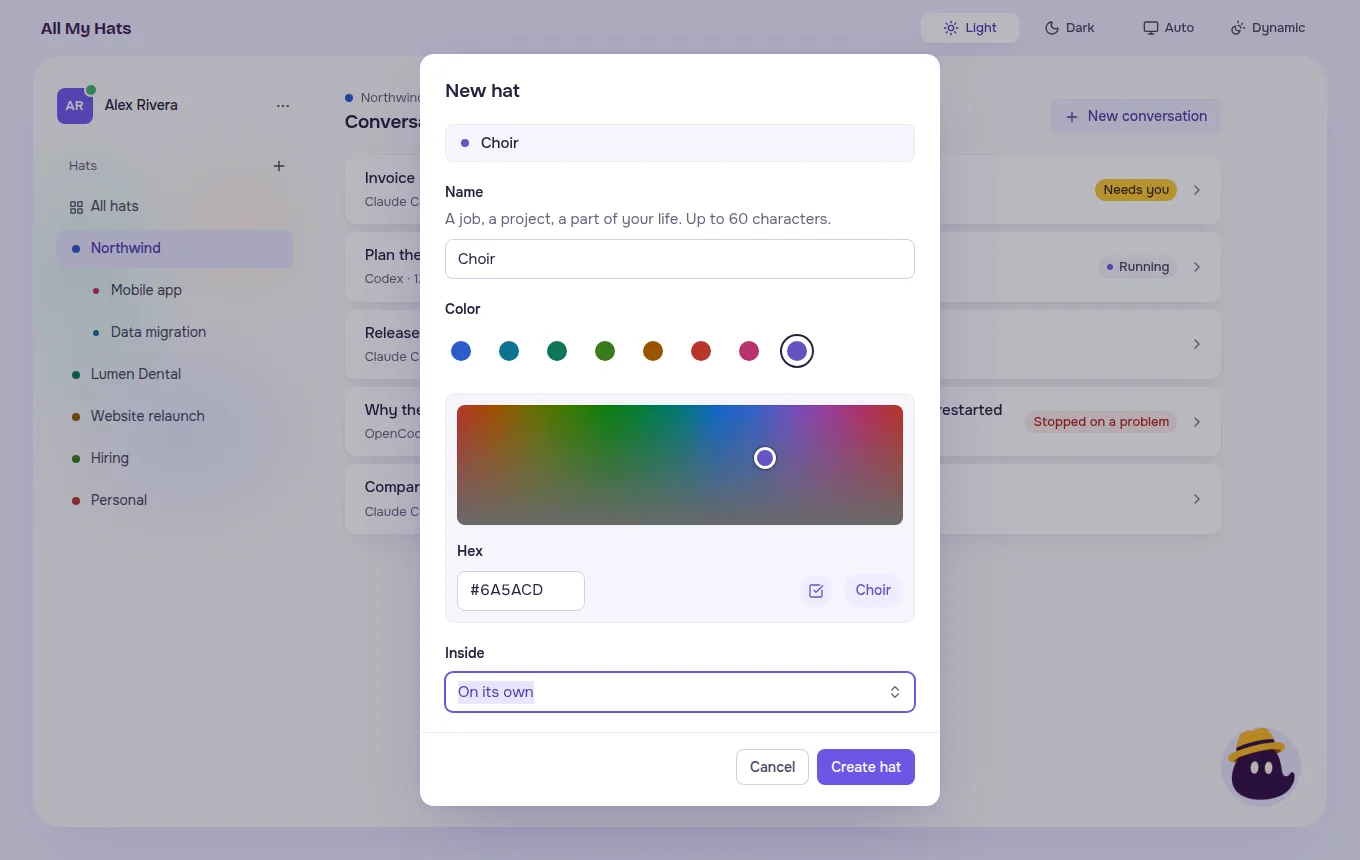
Custom, the last circle in the row of colors, opens a color picker under the row. Its circle shows a spectrum until you have picked a color, and then shows your color.
 Enlarge
 Enlarge
- Press or drag in the square, under Hue and strength. Colors change from left to right, and they get stronger toward the top.
- Or type six digits in Hex, for example
6A5ACD. - The preview beside Hex shows the hat with its name, as it will look in your list.
The app shows your color a little lighter or darker in each theme so it reads well in both. Light and dark covers the themes. Pressing Enter in Hex takes the typed color without saving the hat. Press Create hat, or Save on an existing hat, to keep it.
Change from one hat to another
Click a hat in the list on the left. The middle shows the conversations of that hat that need you, then its queue, then its other conversations. All hats shows the conversations that need you, from every hat, and the items of every hat. Click the hat again, or All hats, to go back from inside a conversation.
Rename, change color, add a hat inside, archive
Move the pointer over a hat in the list and press the three dots that appear at the end of its row. The menu has:
- Rename opens Edit followed by the hat's name, with the cursor in the name.
- Change color opens the same dialog, with the keyboard on the colors. A hat with a color you picked opens on Custom.
- Add a hat inside makes a new hat that sits inside this one.
- Archive puts the hat away.
The color of a hat is kept across restarts, whether it is one of the seven or your own. Press Save to keep a change, or Cancel to leave it.
A hat inside a hat
A hat can hold other hats, one level deep. A hat that is already inside another cannot hold one, so it has no Add a hat inside in its menu. A hat that holds other hats cannot be put inside a hat, and its dialog says "has hats inside it, so it stays on its own."
Archive a hat, and undo it
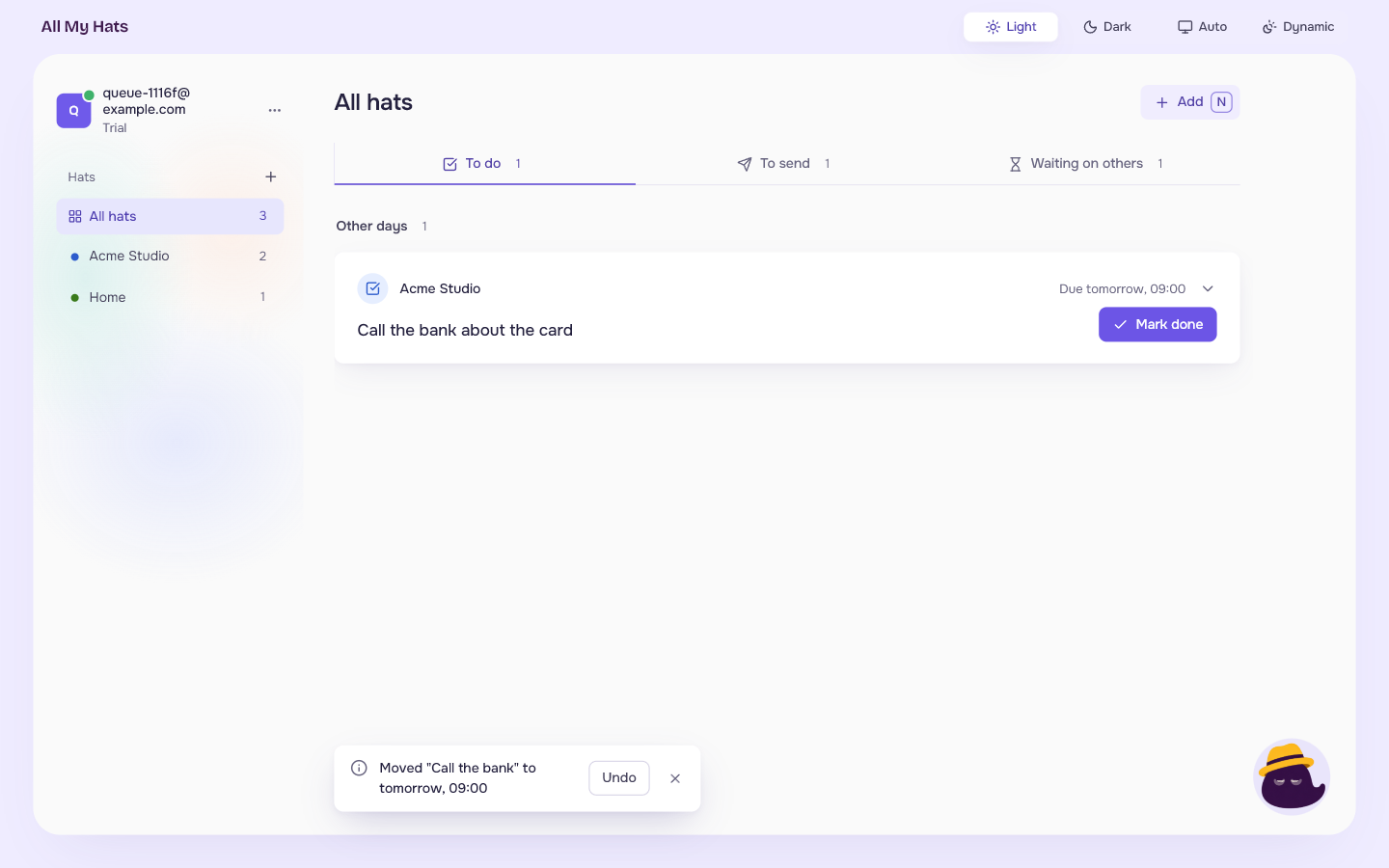
Archive takes the hat out of the list. The app tells you at the bottom of the window, for example "Home is archived. Its items and conversations stay with it." When the hat held other hats, the message says "Home is archived, with the hat inside it. Their items and conversations stay with them."
Press Undo in that message to bring the hat back. The message goes away by itself after a few seconds. Archiving does not delete anything: the items and the conversations of the hat stay with it. To find a hat again after the message is gone, see Bring an archived hat back.
Bring an archived hat back
Undo only lasts a few seconds. Afterwards, an archived hat waits on its own screen.
- Press the three dots beside your email at the top left.
- Choose Archived hats.
- Press Bring back beside the hat.
The screen says how many hats are put away, for example "1 hat put away". Under it, "Bring a hat back and it returns to your hats as it was. Its items and conversations stay with it." Each hat is listed with where it sat: "On its own", "Inside" followed by the hat that held it, or "On its own, with the hat inside it". When the hat that held it is archived too, the row says "Inside" followed by its name and "which is archived too".
A hat that was put away only because the hat around it was archived is not listed. It comes back with that hat.
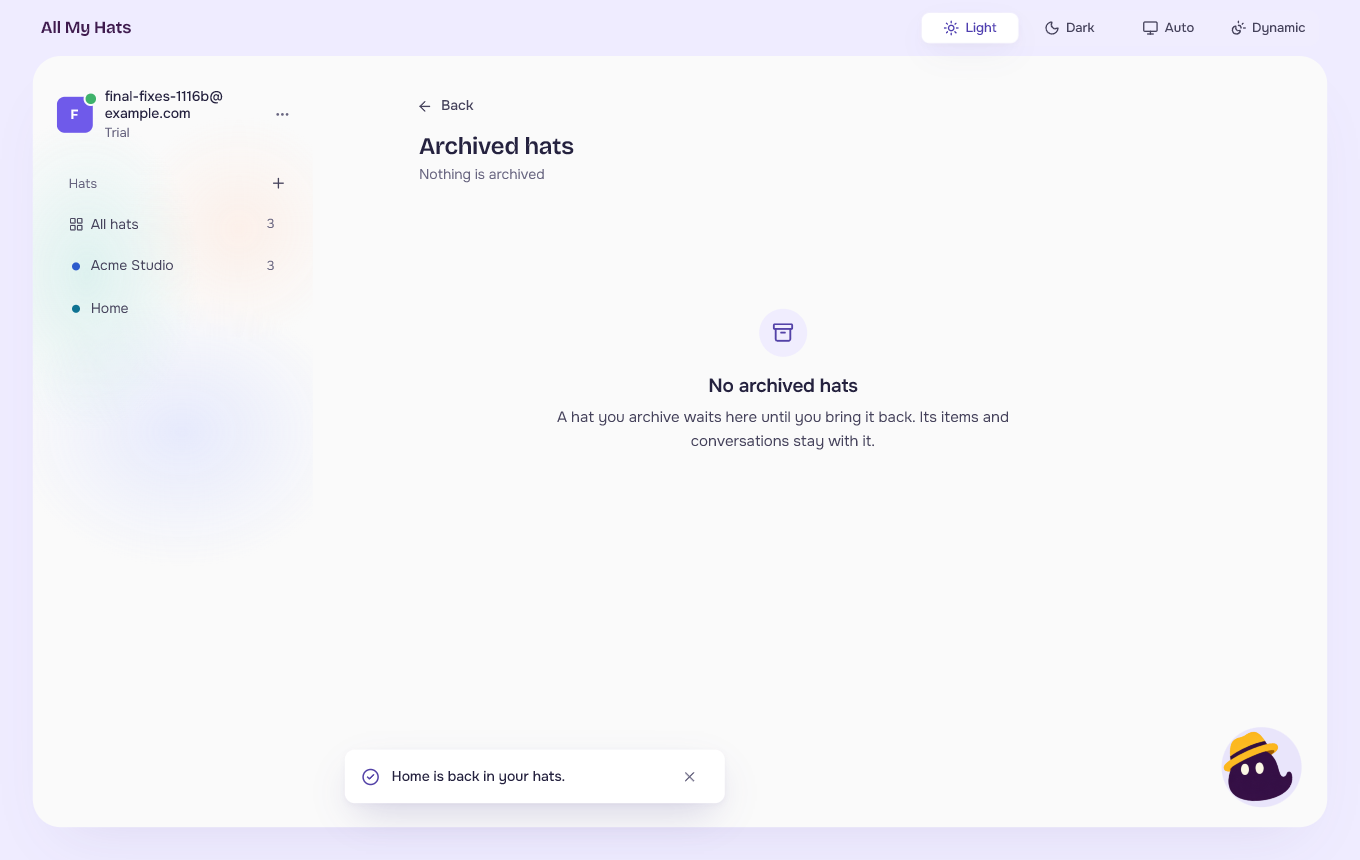
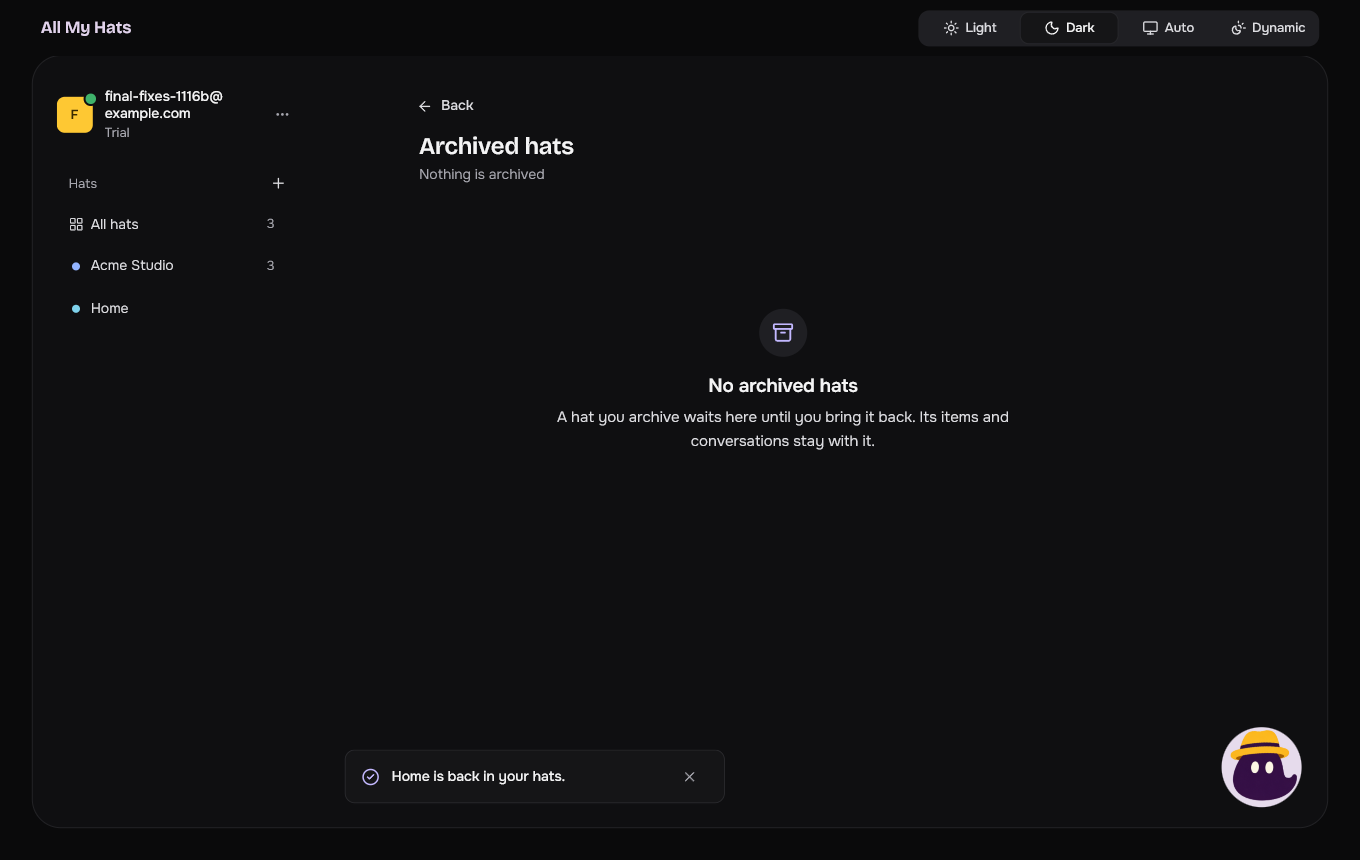
When a hat is back, a message says "Acme Studio is back in your hats." and, for a hat that held others, adds "with the hat inside it" or "with the" followed by a number and "hats inside it". The hat returns as it was, with its items and its conversations, and the message about archiving it goes away. When none is archived, the screen says No archived hats, and "A hat you archive waits here until you bring it back. Its items and conversations stay with it." Press Back to leave it.
 Enlarge
 Enlarge