On this page
 Enlarge
 Enlarge
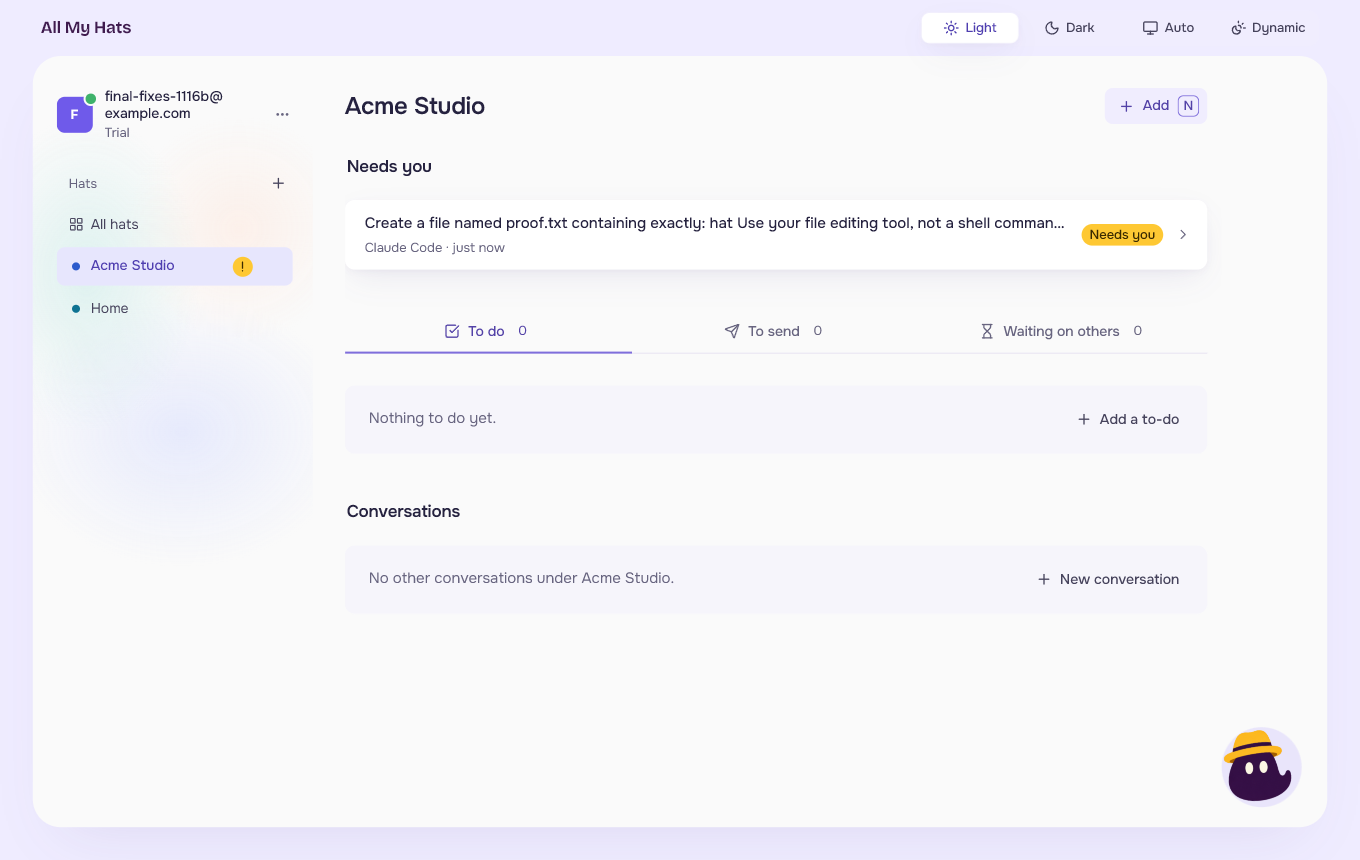
Everything on the main screen is yours. The app shows no sample hats and no sample work. A new account starts with the guide, which makes your first hats. An account with no hats shows an empty screen that says Start with your first hat, with New hat and Open the guide. Make your first hat has the steps.
Left: your account and your hats
Your email sits at the top, with the word Trial under it. The three dots beside it open a menu with Assistants, Archived hats, Sound and celebration, Guide and Sign out. Assistants shows the assistants on your computer. Sound and celebration turns the sounds and confetti on or off. Your hats covers archived hats. Guide opens the guide again, with a map of these same places.
Below is the list Hats. The + beside it makes a new hat. All hats comes first, then each of your hats, with the hats inside a hat indented under it. Click a hat to open it. A dot beside the hat's name shows its color.
A small mark beside a hat tells you something about its conversations.:
| Mark | What it means |
|---|---|
| A circle that turns, called Work in progress | An assistant is writing an answer under this hat. |
| A yellow exclamation mark, called Waiting on you | A conversation under this hat needs an answer from you. |
| A pause sign, called Work paused | A conversation under this hat stopped on a problem. |
When a hat has more than one thing going on, the mark that needs you comes first. Conversations under a hat shows the same marks on the conversations themselves. The number at the right of each hat is how many open items it holds in your queue. A hat with nothing open shows no number.
Middle: the open hat
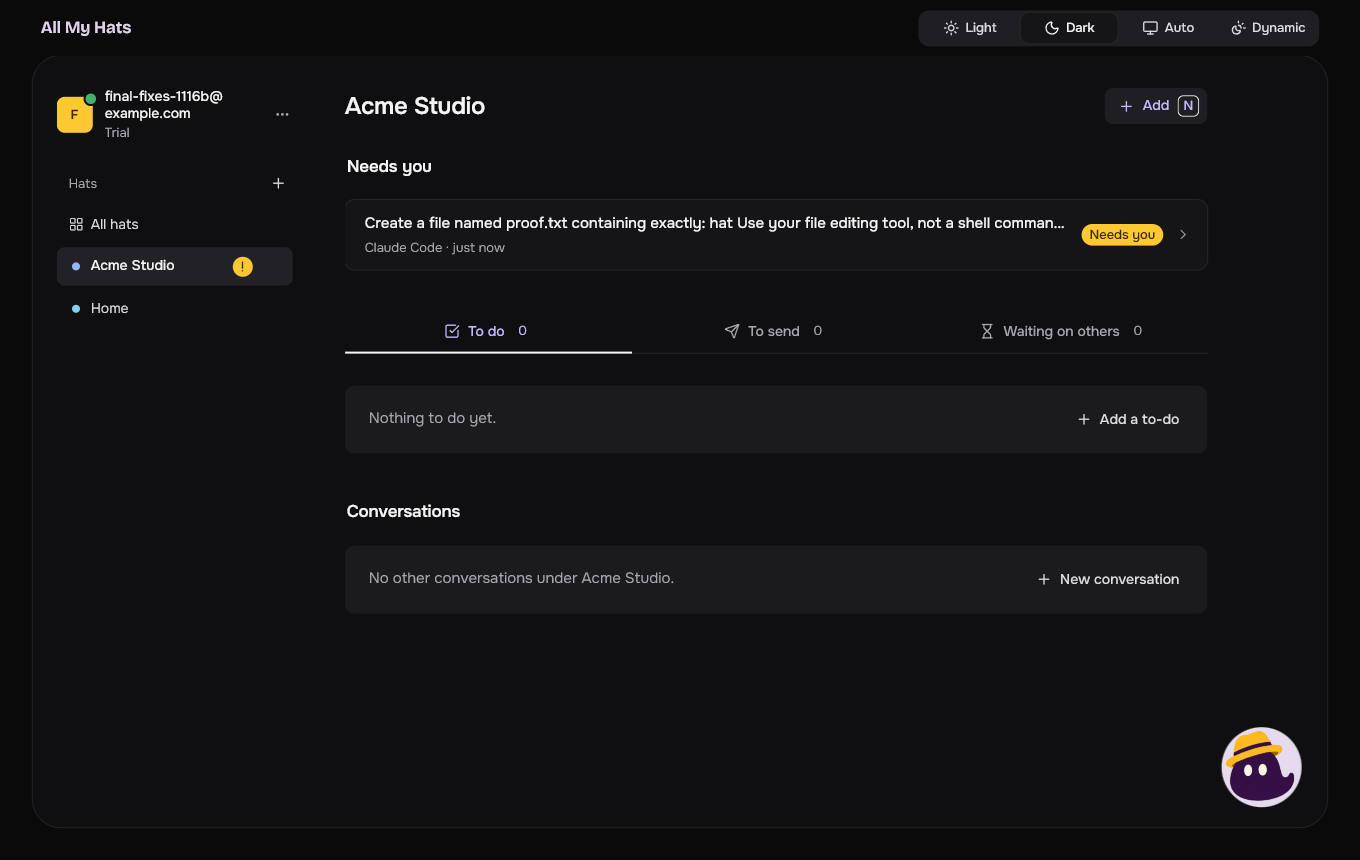
Open a hat and the middle shows the hat's name and Add. Below come up to three parts, in this order:
- Needs you holds the conversations of this hat that wait for an answer from you. It appears only when one does.
- The queue, with its three tabs: To do, To send and Waiting on others.
- Conversations, with a New conversation button and the hat's other conversations. A hat with no conversation says "No conversations under" followed by its name, and "yet". When the hat has conversations but none besides the ones under Needs you, it says "No other conversations under" followed by its name.
When conversations follow the queue and the queue is empty, it shrinks to one line, "Nothing to do yet.", with Add a to-do, so the conversations stay in view.
Open a conversation and the middle shows its messages. Conversations under a hat has the details.
 Enlarge
 Enlarge
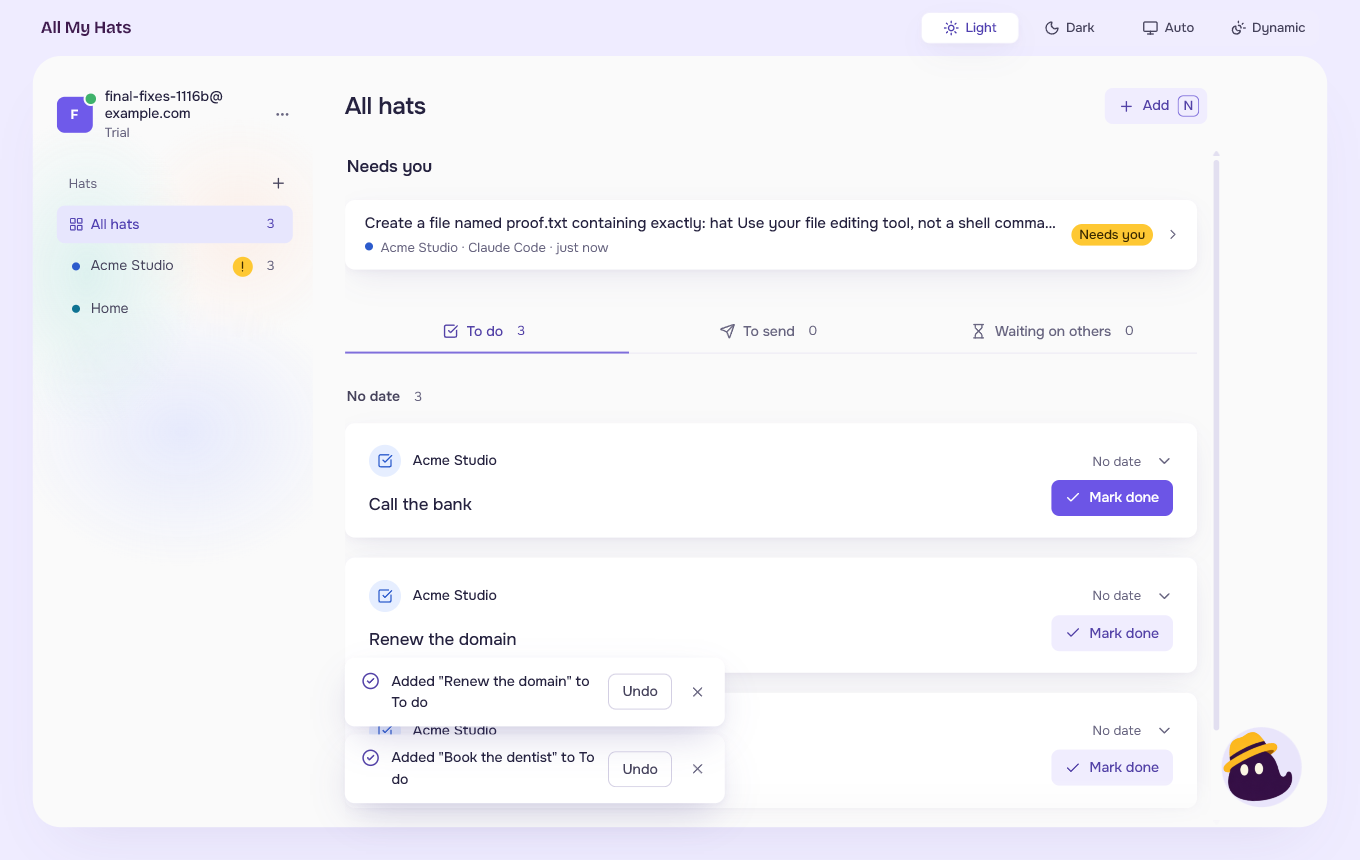
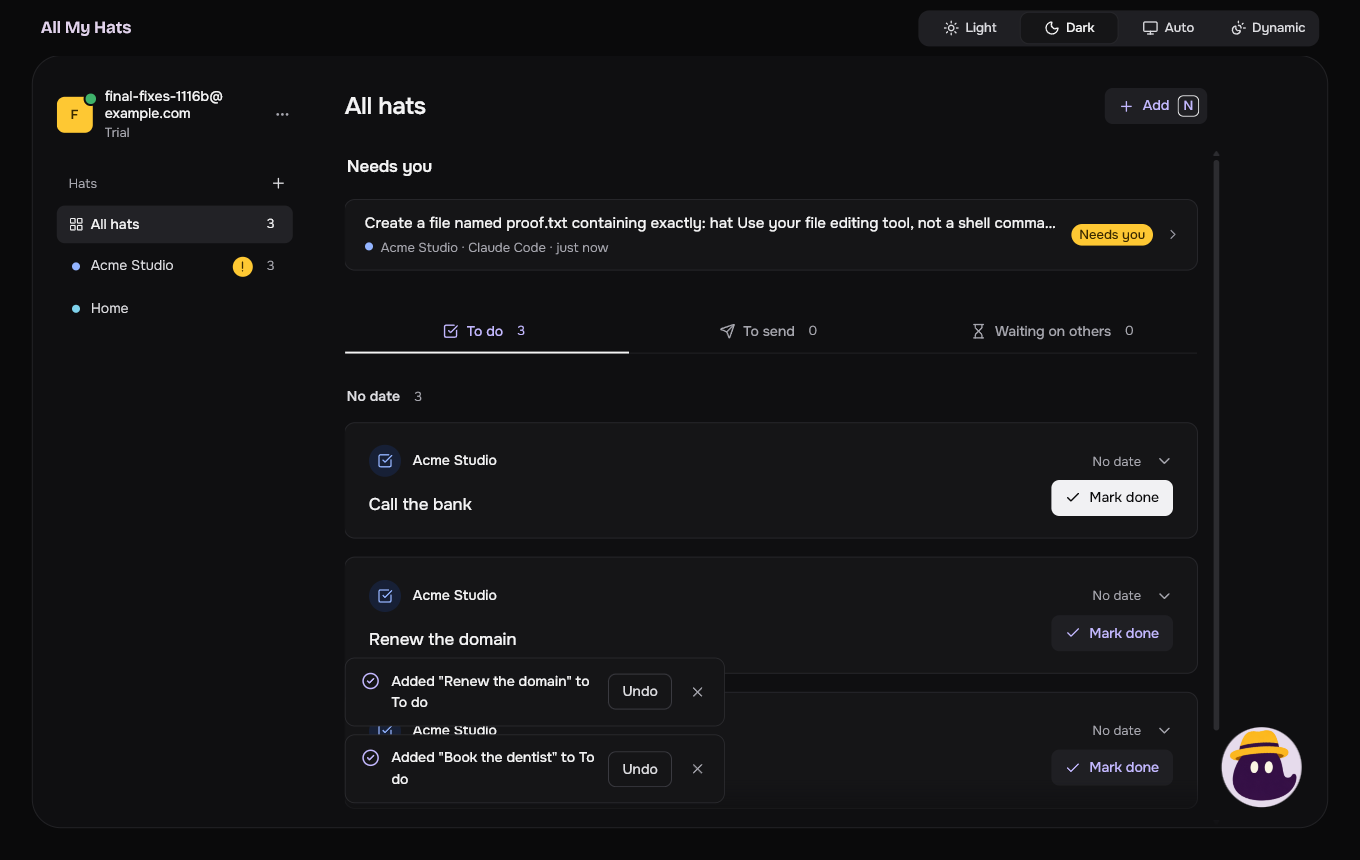
All hats opens with Needs you too. It holds the waiting conversations of every hat, and each row names its hat. Opening one puts that hat on. Below it is the queue with your items from every hat. All hats has no other conversations: wear a hat to see them. Press Add, or the N key, to add an item.
Bottom right: Brim
Click Brim to ask a question. Brim is not part of your conversations. Ask Brim has the steps.
The bar at the top
The bar above the main screen shows the name of the app and the theme switch: Light, Dark, Auto and Dynamic. See Light and dark.