The guide
After your first sign-in, a five-step guide helps you make your first hats, check your assistants, add a first item and find your way around. You can leave it at any step and open it again later.
On this page
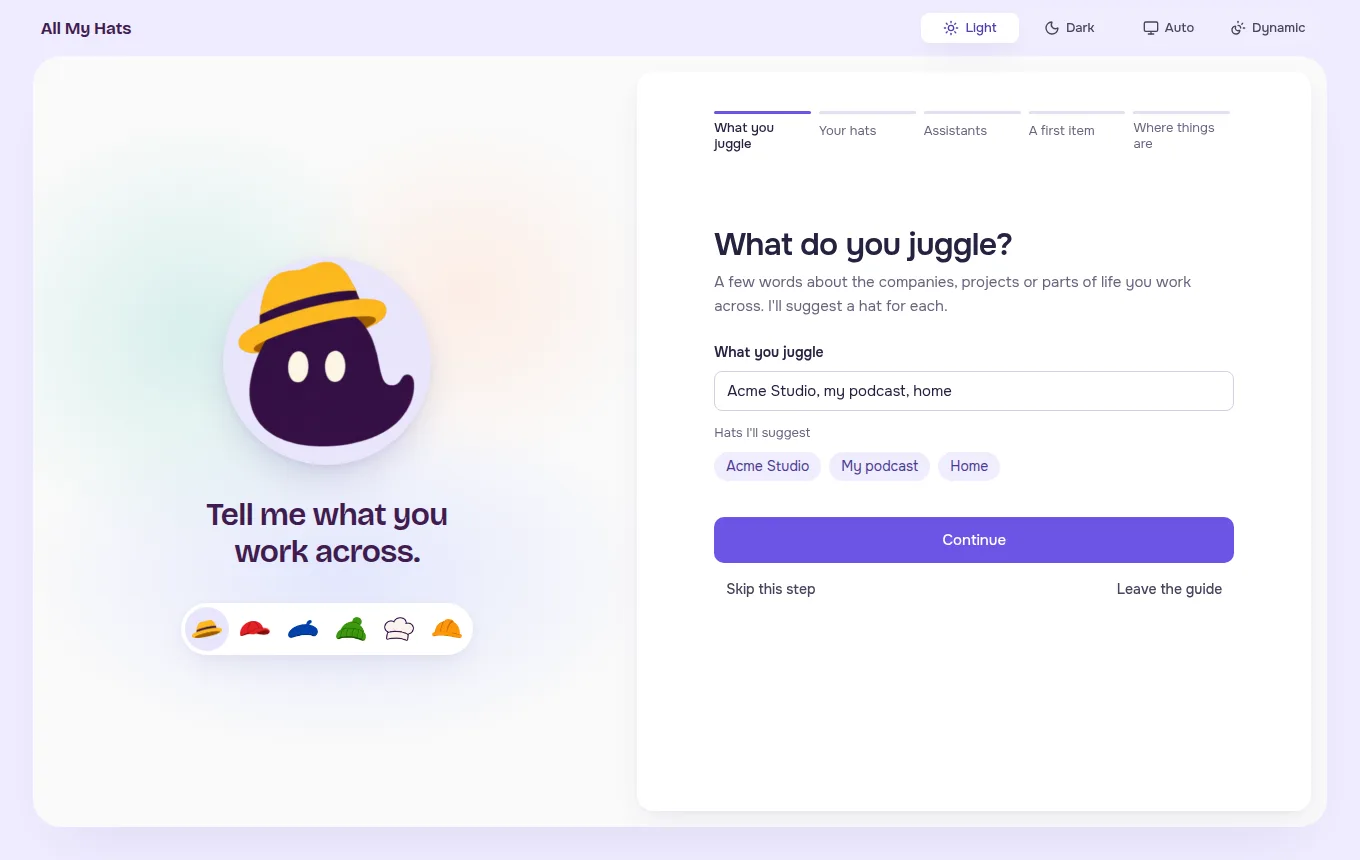
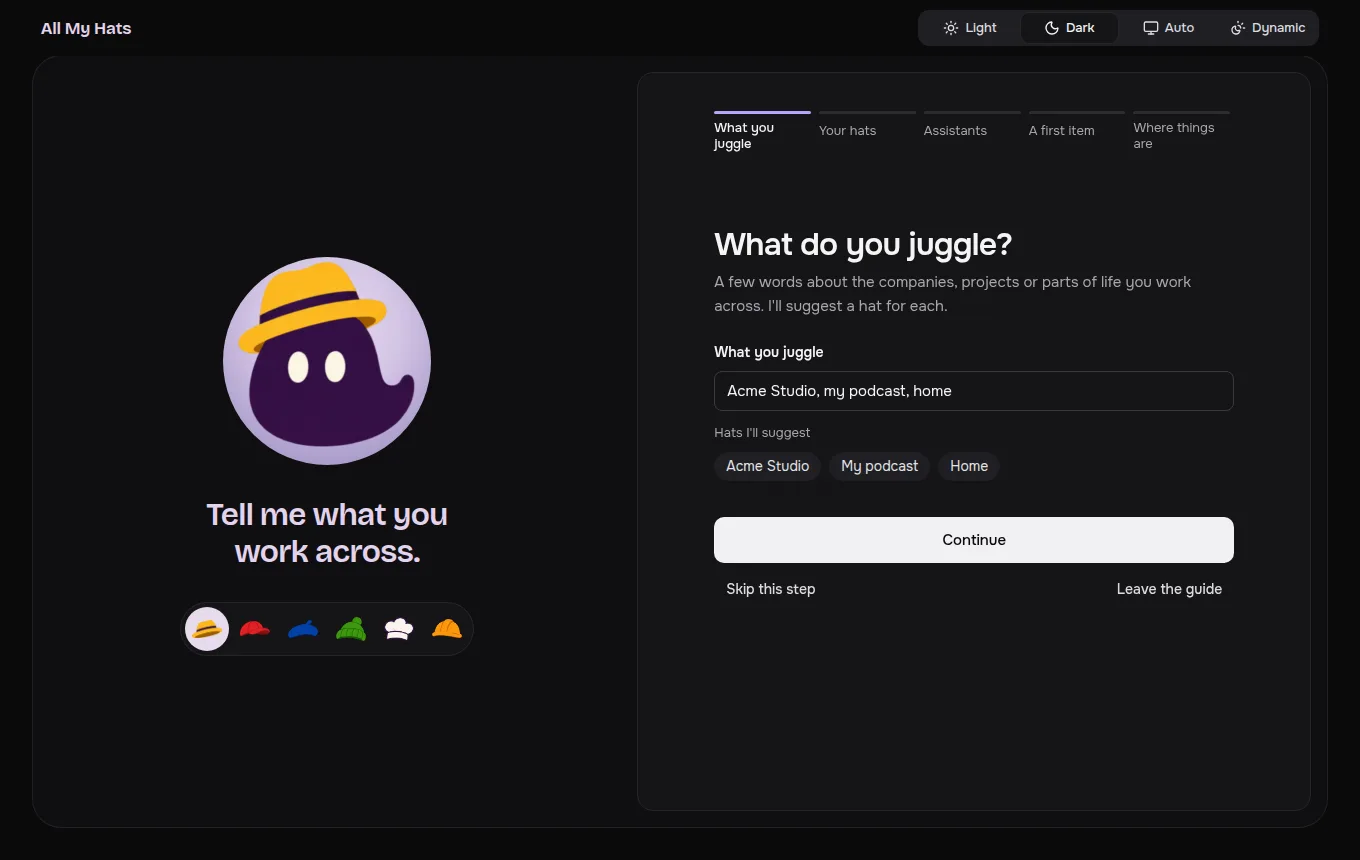
The first time you sign in with a new account, the app opens a guide before the main screen. It has five steps. Brim stands on the left and says a line about the step. The step itself is on the right.
 Enlarge
 Enlarge
A row of five bars sits at the top of the card, with a short name under each: What you juggle, Your hats, Assistants, A first item and Where things are. A check on a bar means you finished the step. A dash means you skipped it. Press any bar to open that step.
The five steps
1. What you juggle
Brim says "Tell me what you work across." Under What do you juggle?, type a few words about the companies, projects or parts of life you work across. For example: Acme Studio, my podcast, home.
Under the field, Hats I'll suggest lists one hat for each name. The app splits your words at commas, semicolons, slashes and line breaks. A piece of up to four words becomes a hat with that name. A longer piece reads as a sentence and gives no hat, and the field says "Write each one as a short name, with commas between them." There are never more than six.
Press Continue.
2. Your first hats
Brim says "Each hat keeps its own work." The step shows one row for each suggested hat, with a color on the left and the name in a field.
- Press the color to pick another one.
- Change a name by typing in its field.
- Press the x to remove a row.
- Press Add another hat for a new row.
If your words gave no hat, or you skipped the first step, the rows start as Work, Home and Side project, with the line "A start to rename. Change any name, remove a row or add your own."
If a name is the same as a hat you already have, or appears in two rows, a quiet line under the row says so. The hat is still made with that name.
Press the button at the bottom, which counts the rows: Make 3 hats, or Make 1 hat. Each row then says Made, and the app says "3 hats made. They're in your list of hats." If a hat could not be made, its row says why, and the button reads Try the 1 that failed.
If you already have hats, for example when you open the guide again later, the step is called Add to your hats and shows them under You have. Its rows are for more hats, and you can add none.
Your hats covers colors, including any color you pick yourself.
3. Your assistants
Brim says "I work through your own assistant." The step lists Claude Code, Codex and OpenCode, with the same cards as the Assistants screen: whether each was found on this computer, which one is in use, and what to do about one that is not ready. After you install or sign in to an assistant, press Check again.
If none is ready, the app says "You can go on without one". You can finish the guide and make hats. A conversation waits until an assistant is ready.
4. A first item
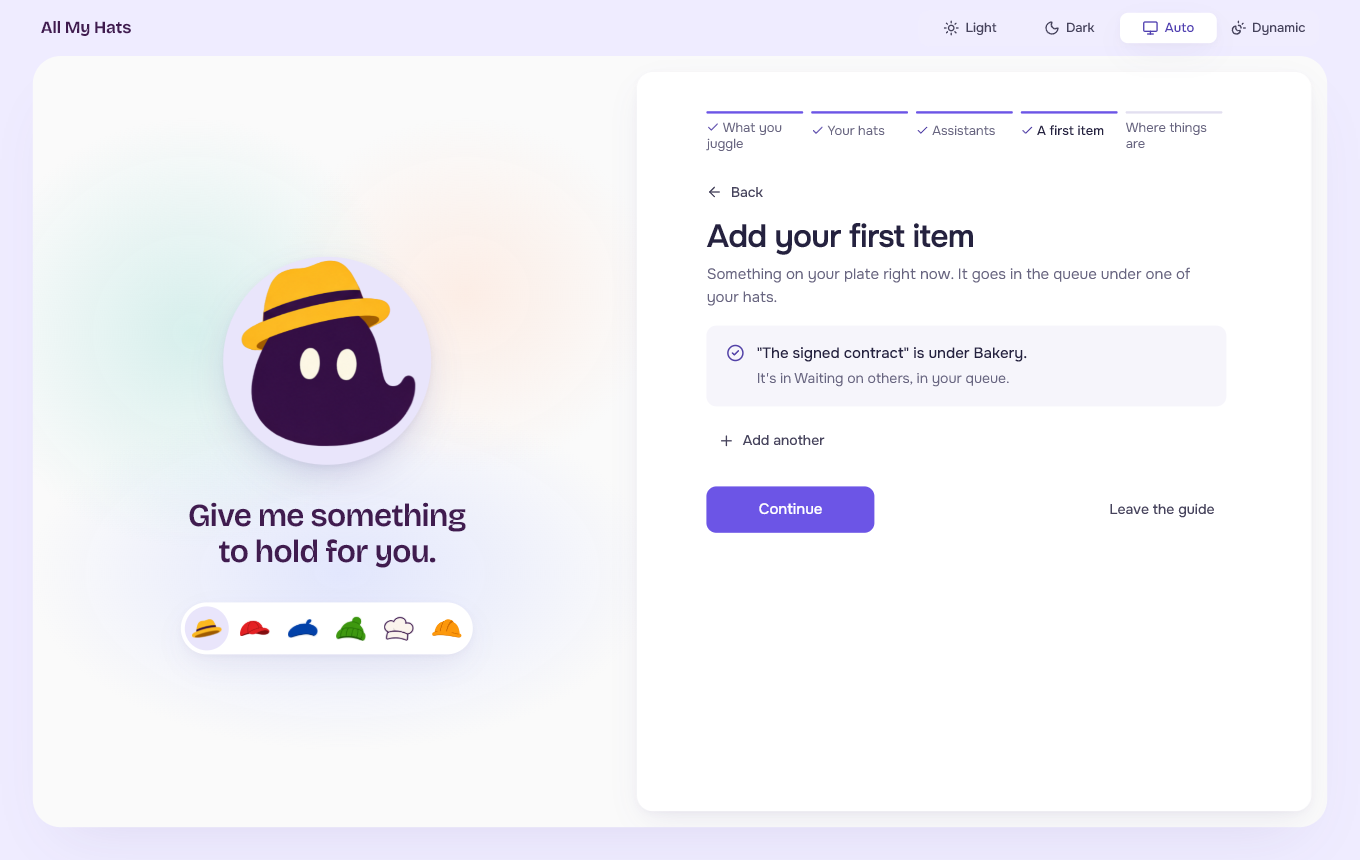
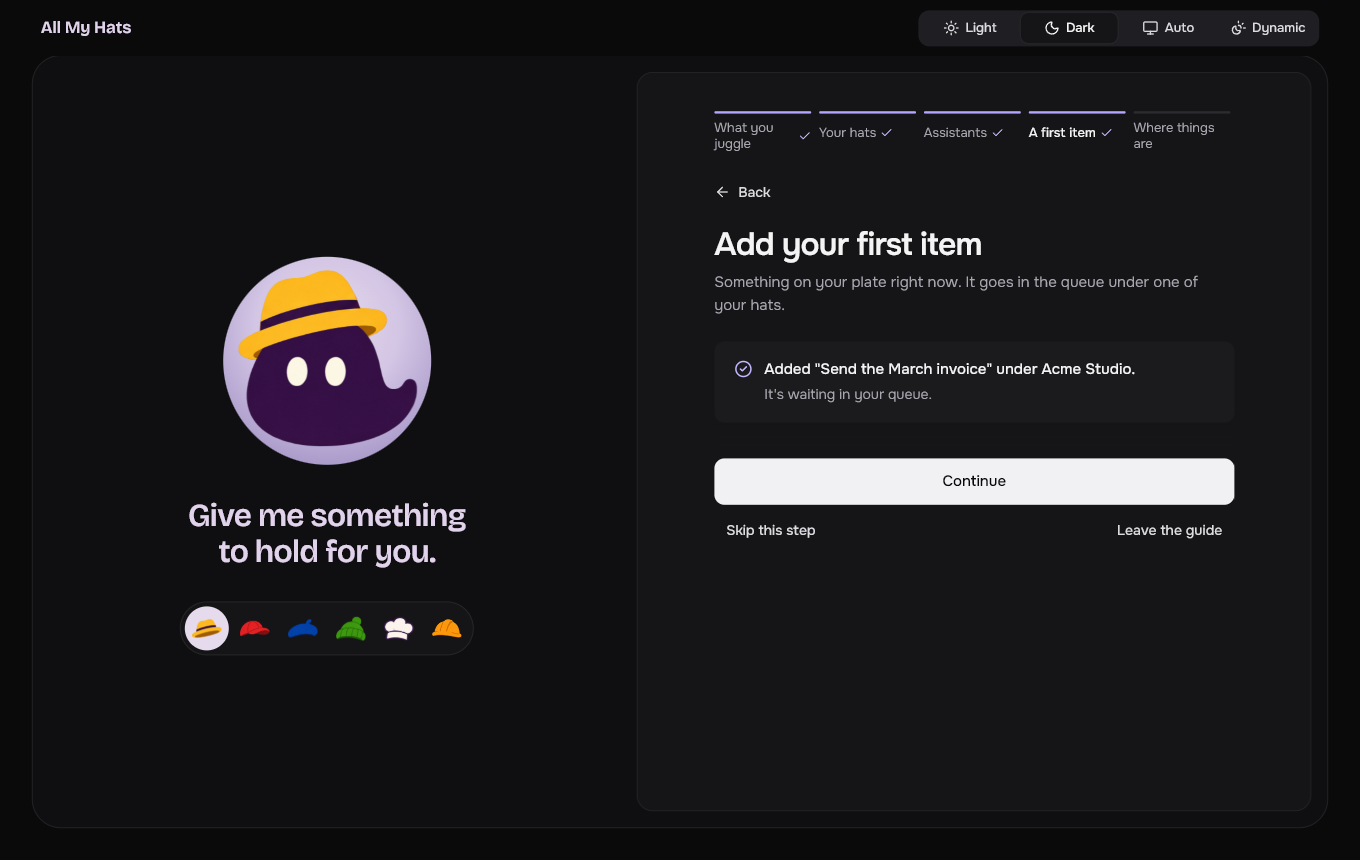
Brim says "Give me something to hold for you." Choose a Kind: To do, To send or Waiting. Type a Title, such as "Send the March invoice", and choose the Hat. For Waiting, Who owes it asks who you are waiting on.
Press Add to the queue. The app says "Send the March invoice" is under Acme Studio. and which tab of the queue holds it, with Add another and Continue. If you come back to this step later, it shows the same item. If you have no hat yet, the step says "Items sit under a hat, and you have none yet." and offers Make a hat first.
 Enlarge
 Enlarge
Your queue explains the three kinds.
5. Where things are
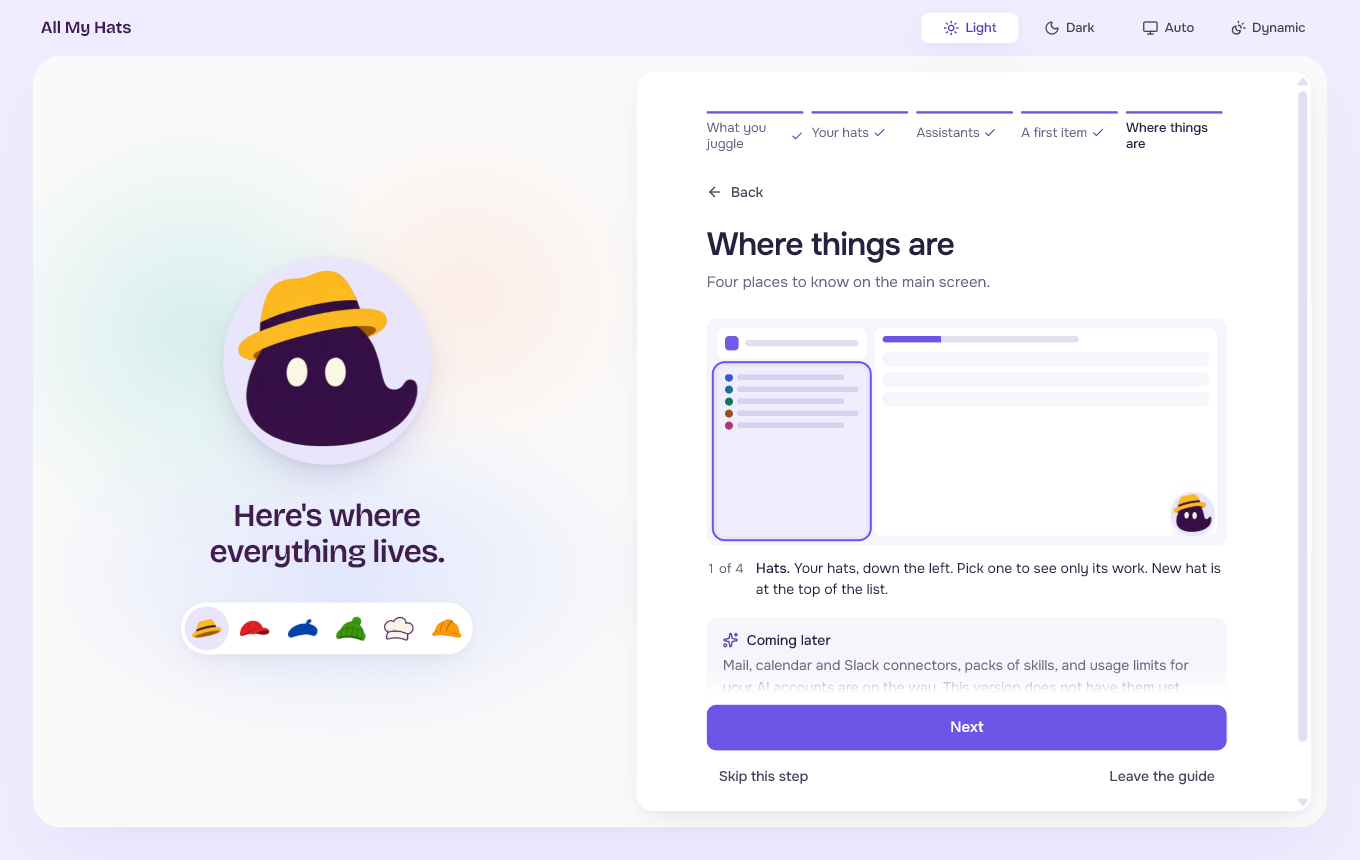
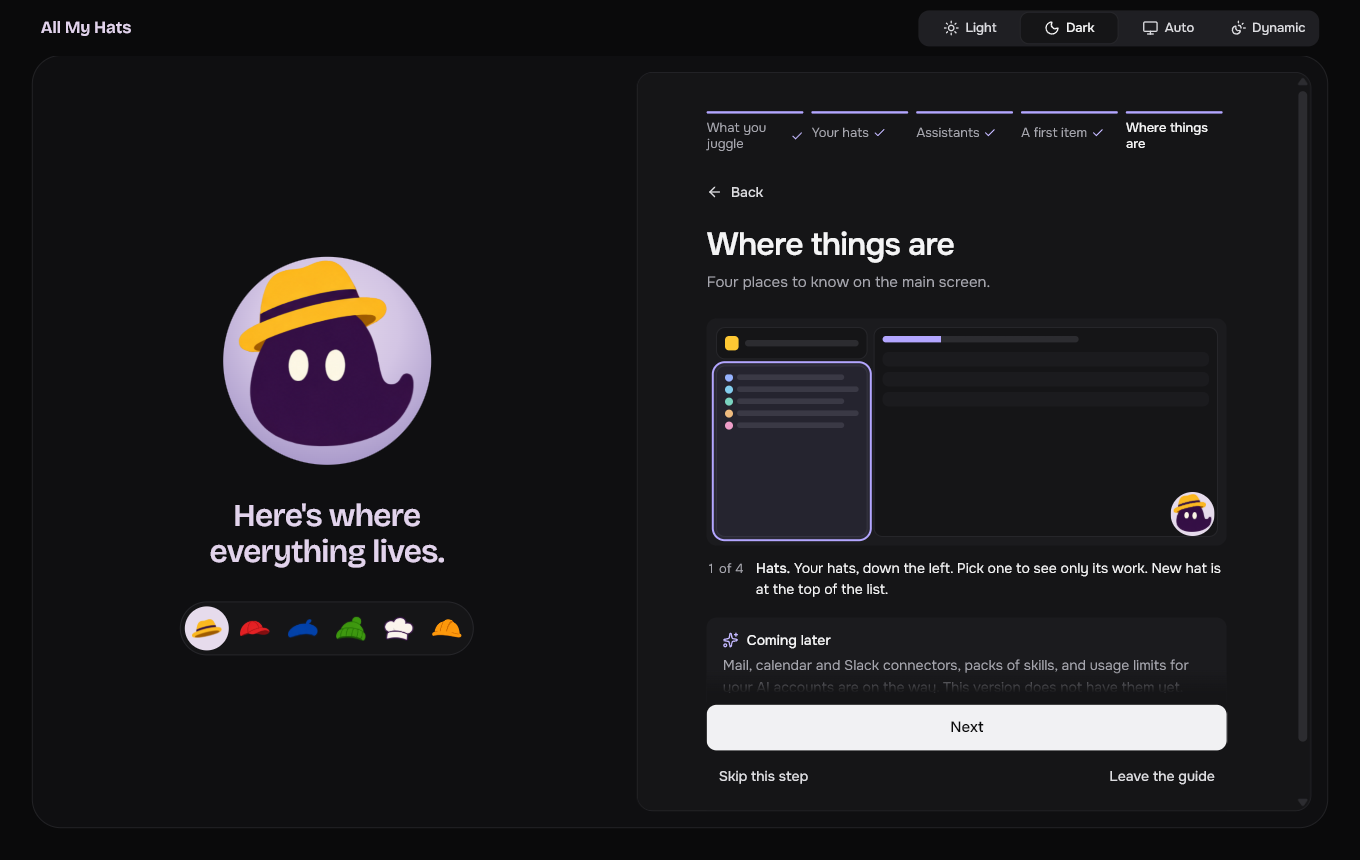
Brim says "Here's where everything lives." A small map of the main screen lights up four places one at a time: Hats, Queue, Brim and Account. Press Next to go on, or press a place on the map. Under the map, Coming later says that mail, calendar and Slack connectors, packs of skills, and usage limits for your AI accounts are on the way and that this version does not have them yet.
 Enlarge
 Enlarge
On the last place, the button reads Open my hats. It opens the main screen. If you added an item in step 4, the queue opens on its tab with that item selected.
Skip a step, or leave
- Skip this step moves on without doing the step. The bar shows a dash, and you can come back to it. A step you finished has no Skip this step, and stays finished.
- Back goes to the step before. It appears from step 2 on.
- Leave the guide puts the guide away and opens the main screen. Steps you skipped stay skipped. The Escape key does nothing in the guide, so a stray key press never closes it.
If you close the app halfway
The app keeps your progress on this computer, for your account. When you open the app again, the guide comes back on the first step you have not finished or skipped, and the words you typed in the first step are still there.
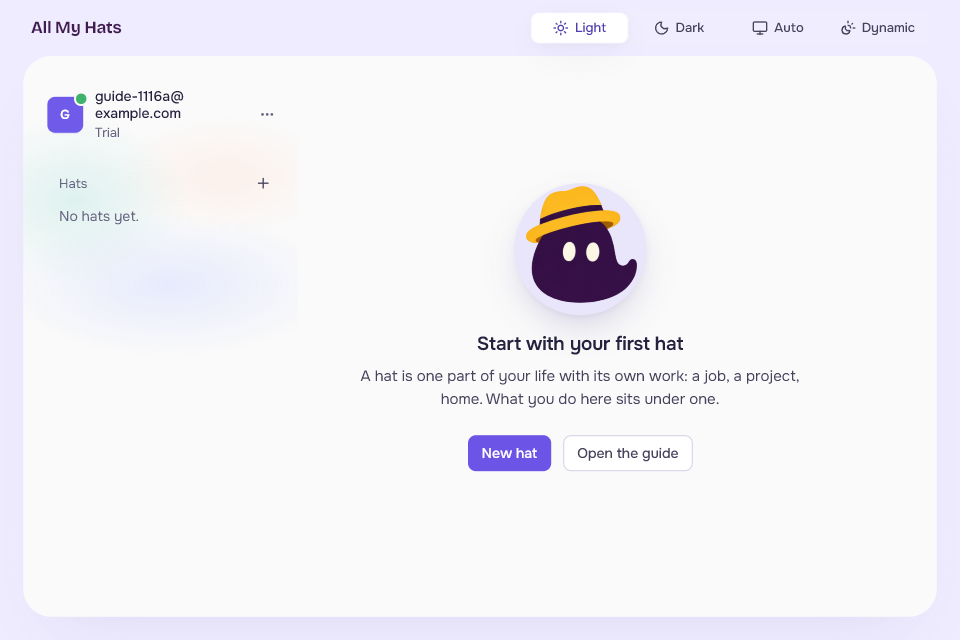
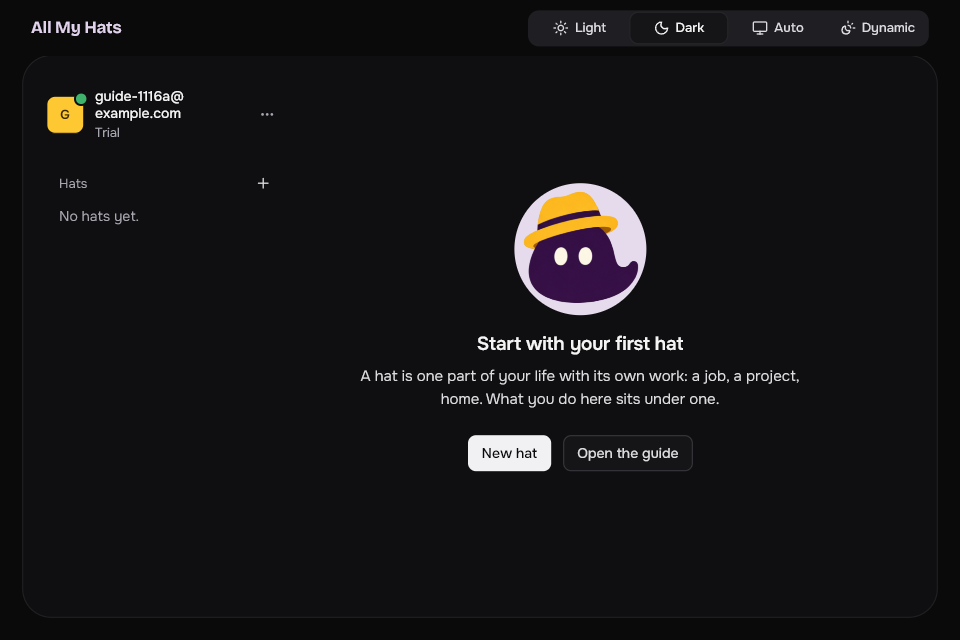
If you left the guide before making a hat, the main screen says Start with your first hat and offers Open the guide next to New hat.
 Enlarge
 Enlarge
Open the guide again
Press the three dots beside your email at the top left and choose Guide. It opens on step 1 with your progress marked. An account that already has hats does not get the guide by itself, so the menu is where to find it.
Next, make a hat on your own or ask Brim a question.