The app is paused
The screens the app shows when it cannot check your plan, and what each one asks of you.
On this page
The app checks your plan online about once an hour, in the background. During the trial, your trial is your plan. When the app cannot check it, or the answer is no, it replaces the main screen with one of the screens below. Each has a Sign out button.
Opening All My Hats
The line under it reads "Checking your plan." This is the app starting. It moves on by itself.
This account needs a plan
 Enlarge
 Enlarge
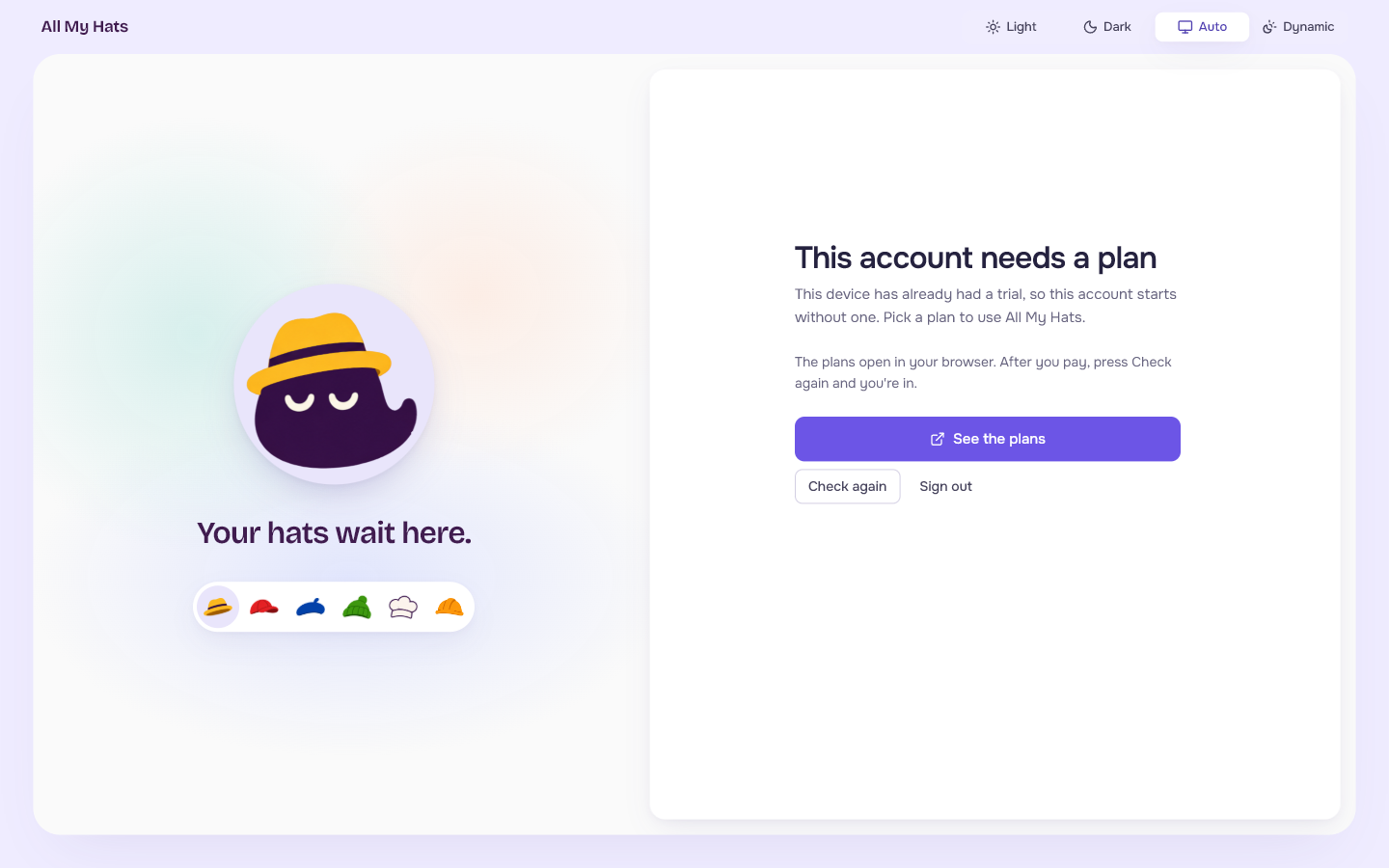
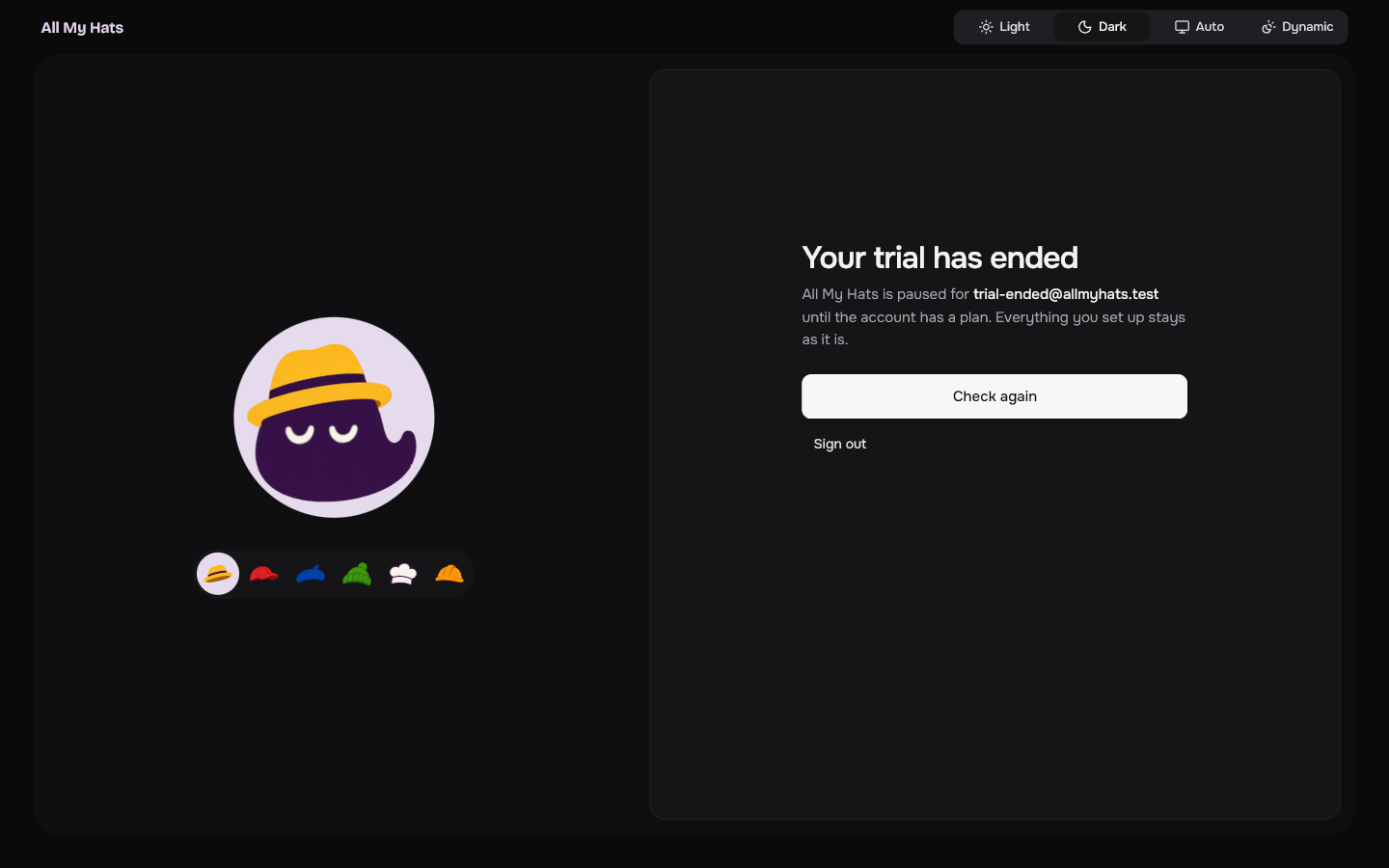
The account has no plan right now, and the screen says why when the server tells it. The title can read Your trial has ended, Your plan has ended or Your last payment didn't go through. Otherwise it reads This account needs a plan.
The text says All My Hats is paused for your email "until the account has a plan", and that everything you set up stays as it is.
See the plans opens the plans page in your browser. After you pay, press Check again: it asks the server whether the account has a plan now and lets you in when it does.
Can't reach All My Hats
The screen reads: "All My Hats checks your plan online and couldn't get through. Check your connection. It keeps trying on its own."
- Check your internet connection.
- Press Try now.
The app also keeps trying by itself and returns to the main screen once it gets through.
Time to update
The screen reads: "This version is too old to check your plan. Install the latest All My Hats, then open it again." During private testing, a newer version comes from whoever gave you the app.
Check this computer's clock
The screen reads: "The date and time set on this computer are off. Set them to automatic, then check again."
- Open the date and time settings in Windows.
- Turn on automatic time.
- Go back to the app and press Check again.
This copy can't confirm your plan
The screen reads: "What it received about your plan didn't pass verification. Install All My Hats again from the official download, then check again." During private testing, ask whoever gave you the app for a fresh copy.