When an assistant is not found, cannot start or is signed out
What the three assistant problems look like in a conversation, and how to fix each one.
On this page
A conversation needs an assistant on your computer: Claude Code, Codex or OpenCode. When one cannot be used, the app says so in place of the message field and offers one button. These are the three cases. The problem is always with the assistant on your computer, never with your All My Hats account.
No assistant is installed
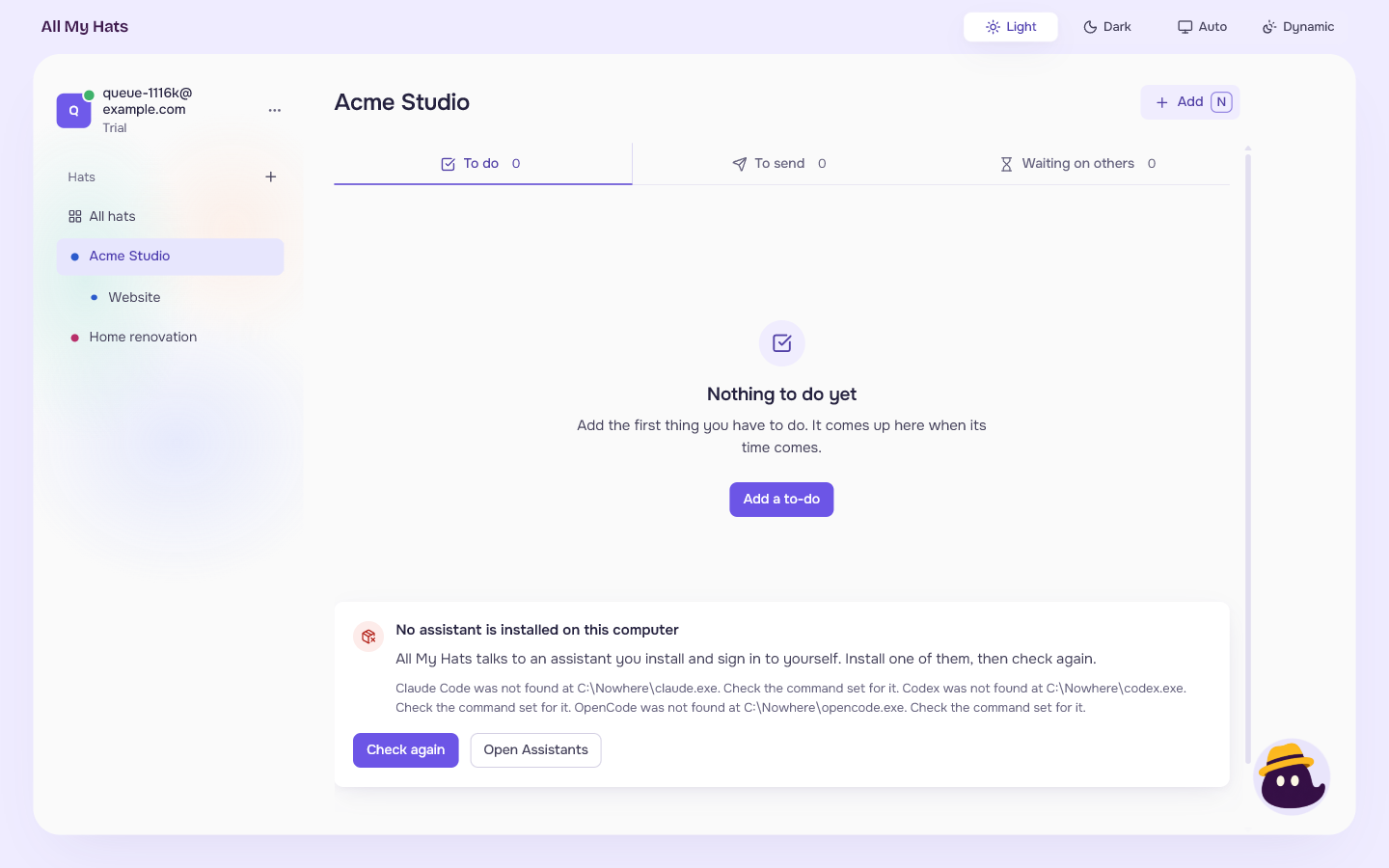
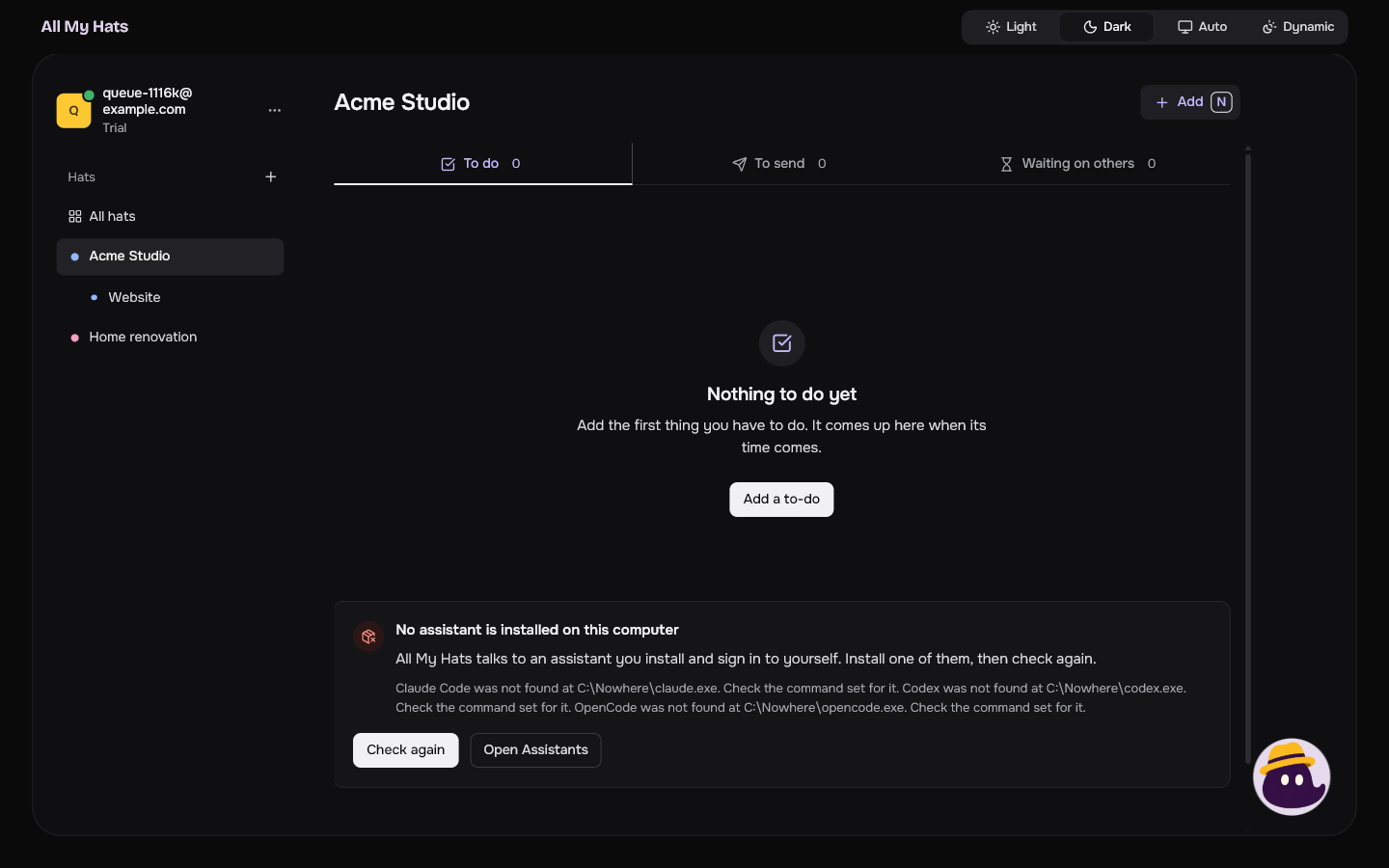
When you press New conversation and the app finds none of the three, a card under the hat's queue says "No assistant is installed on this computer". The line under it reads "All My Hats talks to an assistant you install and sign in to yourself. Install one of them, then check again."
 Enlarge
 Enlarge
In small print under it, the app lists what it found for each assistant, for example "Claude Code was not found at" followed by the command it tried.
- Press Open Assistants. The Assistants screen shows each assistant and its install page.
- Install one of the three. Anthropic's quickstart covers Claude Code on Windows.
- Sign in to it. Open a terminal, type its name (
claude,codexoropencode) and sign in if it asks you to. - Press Check again, on the card or on the Assistants screen.
If you installed an assistant and the app still does not find it, it may be kept where the app does not look: inside WSL, or installed with npm as a .cmd file, which is not supported yet. Tell the app where it is under Custom location on the Assistants screen.
An assistant is not installed
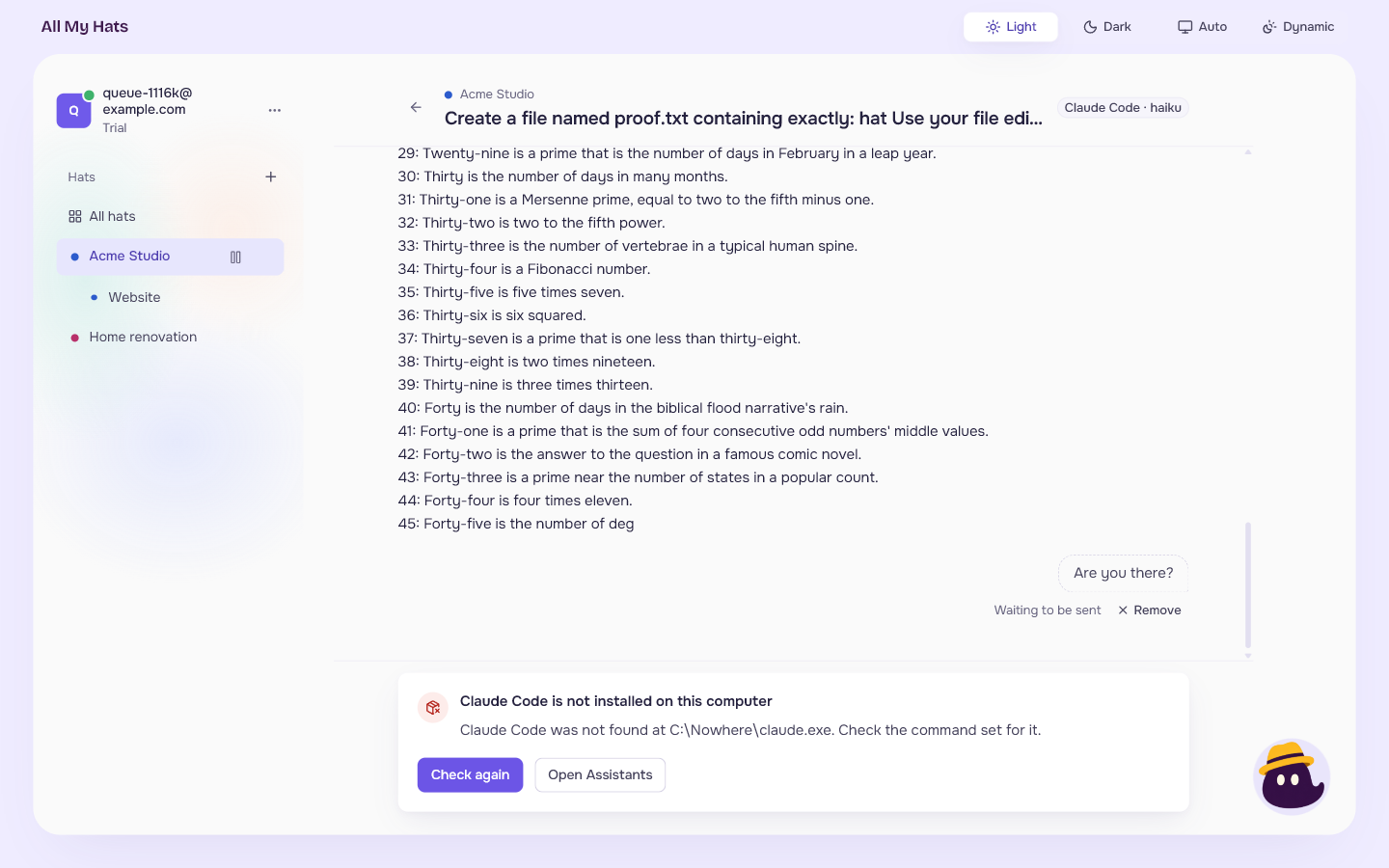
The title reads "Claude Code is not installed on this computer", with the name of the assistant that conversation uses. It shows in place of the message field in a conversation you made when that assistant was there, with Check again and Open Assistants.
 Enlarge
Install it, then press Check again. The Assistants screen shows where to install it and lets you give a custom location. When you go back from it, you are in the conversation again. If the conversation has a waiting message, it stays under "Waiting to be sent" until you fix the problem, and Remove takes it back.
An assistant could not start
The title reads "Codex could not start", with the assistant's name. Under the reason is a line in small print that the assistant or Windows reported, in its own words and language. All My Hats adds nothing to it.
Check that the program still works by running its name in a terminal. When it does, press Try again. If it is kept somewhere unusual, Open Assistants leads to Custom location.
An assistant is signed out
The title reads "Claude Code is signed out", with the assistant's name, and the reason says "Check that it is signed in and in good standing, then retry."
- Open a terminal. The card on the Assistants screen shows the command to run.
- Type the assistant's name (
claude,codexoropencode), press Enter, and sign in inside it. - Go back to All My Hats and press Try again.
You sign in inside the assistant. All My Hats has no place to type that password and never asks for it.
Brim
Brim has its own messages, because it answers only through Claude Code. See Brim can't answer.